The short answer
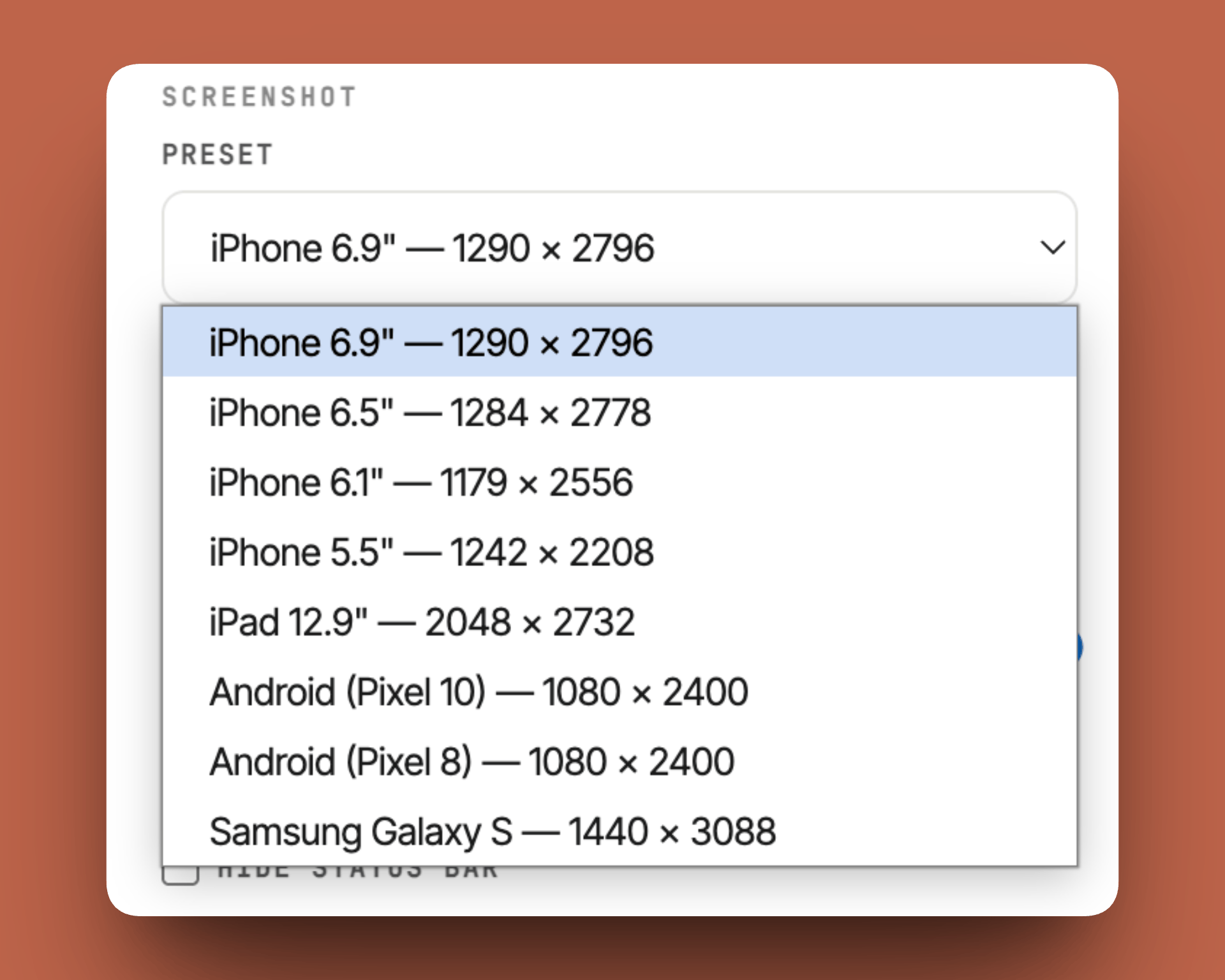
If your app runs on iPhone, you need one required set: 6.9-inch (1260 × 2736). Everything else auto-scales from it. If your app also runs on iPad, you need one more: 13-inch (2064 × 2752). (Full specs in Apple's official screenshot specifications.)
A tool like ezscreenshots has every required size built in as presets — pick one, drop your screenshot, and export at the correct dimensions without memorizing pixel values.
That's it for getting through App Store Connect without errors. But "minimum viable" and "optimized for conversions" are two different things — read on for why you might want more.
iPhone screenshot sizes (2026)
Apple's screenshot specifications page lists many device sizes, but they collapse into a few practical buckets. Here's what matters:
| Display size | Pixels (portrait) | Devices | Required? |
|---|---|---|---|
| 6.9" | 1260 × 2736 | iPhone Air, 17 Pro Max, 16 Pro Max, 16 Plus, 15 Pro Max, 15 Plus, 14 Pro Max | Yes |
| 6.5" | 1284 × 2778 | iPhone 14 Plus, 13 Pro Max, 12 Pro Max, 11 Pro Max, XS Max, XR | Only if 6.9" not provided |
| 6.3" | 1179 × 2556 | iPhone 17 Pro, 17, 16 Pro, 16, 15 Pro, 15, 14 Pro | No — scales from 6.5" |
| 6.1" | 1170 × 2532 | iPhone 17e, 16e, 14, 13, 12, 11 Pro, XS, X | No — scales from 6.5" |
| 5.5" | 1242 × 2208 | iPhone 8 Plus, 7 Plus, 6s Plus | No — scales from 6.1" |
In practice: Upload 6.9" screenshots and you're covered. Apple will auto-scale for every smaller iPhone. The 5.5" and smaller sizes are legacy devices with negligible market share in 2026.
What about landscape?
If your app supports landscape mode, provide landscape variants at the same pixel dimensions (just swapped: 2736 × 1260 for 6.9"). Most apps skip this — landscape screenshots are only required if your app is landscape-only.
iPad screenshot sizes
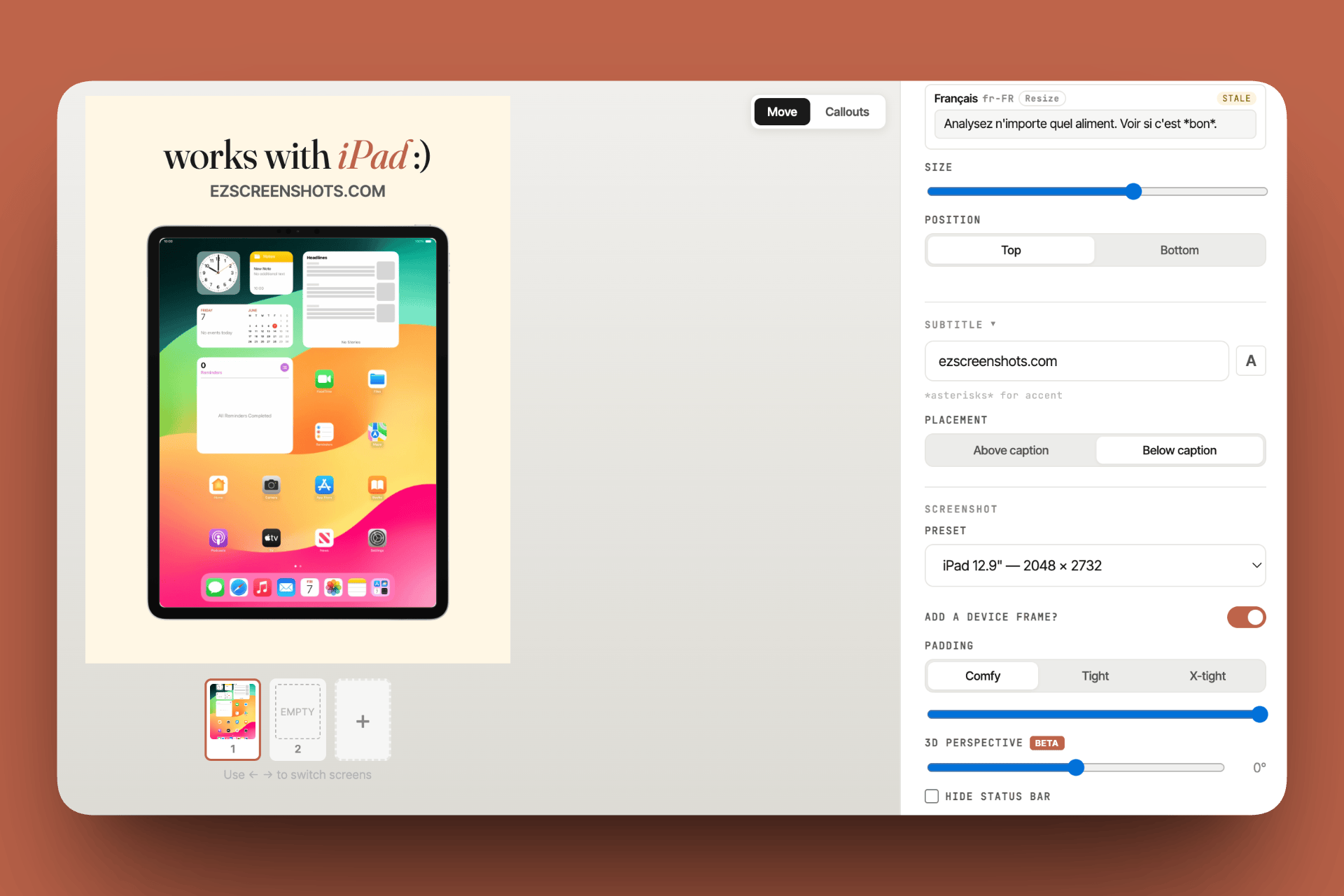
If your app runs on iPad (including iPhone apps that run on iPad via compatibility mode), you need iPad screenshots:
| Display size | Pixels (portrait) | Devices | Required? |
|---|---|---|---|
| 13" | 2064 × 2752 | iPad Pro M5/M4, iPad Air M4/M3/M2 | Yes (if app supports iPad) |
| 12.9" | 2048 × 2732 | iPad Pro (2nd gen) | No — scales from 13" |
| 11" | 1488 × 2266 | iPad Pro, Air, iPad (A16), mini | No — scales from 13" |
Pro tip: Many iPhone-only apps technically "run on iPad" via compatibility mode but look terrible. If you haven't optimized for iPad, consider opting out of iPad in App Store Connect rather than shipping awkward scaled-up screenshots.
Apple Watch sizes
If your app has a watchOS component, you'll need watch screenshots too:
| Watch | Pixels | Required? |
|---|---|---|
| Ultra 3 (49mm) | 422 × 514 | Yes (if app has watchOS) |
| Series 11/10 (46mm) | 416 × 496 | No — scales |
| Series 9/8/7 (45mm) | 396 × 484 | No — scales |
Google Play Store sizes (for comparison)
If you're shipping on both platforms, here's what Google requires:
| Type | Dimensions | Notes |
|---|---|---|
| Phone | 1080 × 1920 (min) to 1284 × 2778 (common) | 16:9 or taller aspect ratio; min 320px, max 3840px on any side |
| 7" tablet | 1080 × 1920 (recommended) | Optional but helps ranking |
| 10" tablet | 1920 × 1200 or 2560 × 1600 | Optional |
Google is less strict than Apple — there's no single "required" size. But 1284 × 2778 (matching Apple's 6.5") is the most common choice for Android phone screenshots because it looks sharp on every modern Android device.
Common mistakes that cause rejections
1. Wrong pixel dimensions
App Store Connect will flat-out reject uploads that don't match an accepted size. The most common mistake: exporting at 1x instead of the native resolution (e.g., exporting a 6.9" screenshot at 630 × 1368 instead of 1260 × 2736).
2. Status bar issues
Apple doesn't require you to show the status bar, but if you include it, it should look realistic. A status bar showing "9:41 AM" (Apple's canonical time) is the safest bet. Better yet, hide it entirely and use the full canvas for your marketing message.
3. Misleading content
Apple's guideline 2.3.3 says screenshots must "accurately reflect the app's user experience." You can add marketing text, device frames, and backgrounds — but the actual app UI shown must be real. Don't show features that don't exist or fabricate UI elements.
4. Providing only small sizes
If you only upload 5.5" screenshots, they won't scale up to 6.9". Always start with the largest required size and let Apple scale down.
What actually matters for conversions
Getting the sizes right is table stakes. Here's what the data shows about screenshots that drive downloads:
- Your first screenshot does 80% of the work. Only ~2% of App Store visitors scroll past the first 3 screenshots. Make screenshot #1 your best pitch.
- Captions beat raw app UI. A clear headline ("Track expenses in 10 seconds") above your app screenshot outperforms a naked UI screenshot every time.
- Consistency signals quality. Matching backgrounds, consistent fonts, and a clear visual narrative across all 5-10 screenshots signal a polished product. For the specific visual patterns that drive conversion — caption placement, font weight, background contrast — see the App Store screenshot template guide.
- Device frames are optional. Some top apps use them, some don't. Test both — frames add credibility but eat canvas space.
The fastest workflow
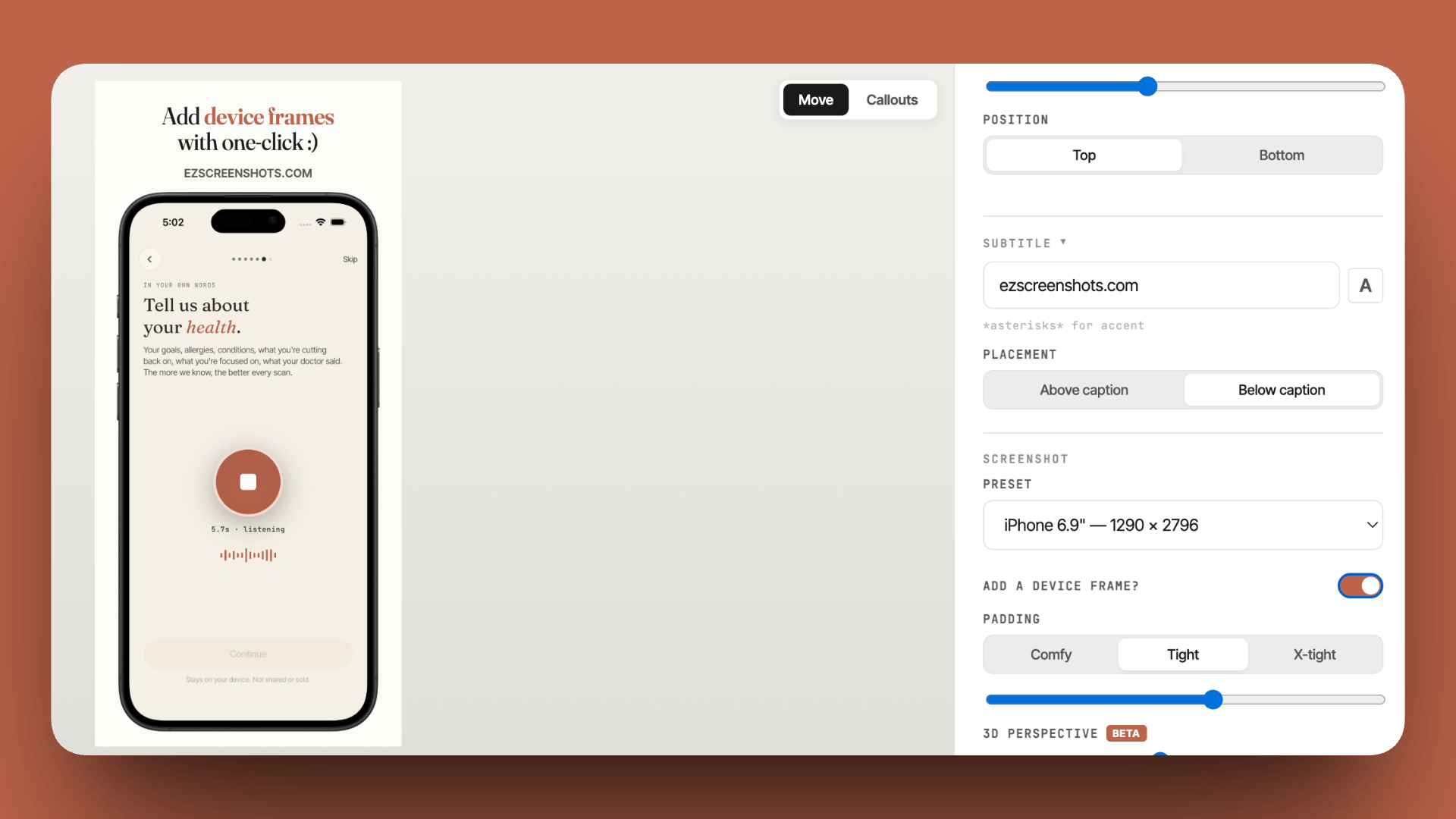
Here's how to go from raw app screenshots to a full set of App Store assets in under 5 minutes using ezscreenshots:
- Take your screenshots — Simulator or real device, capture the key screens
- Pick the right canvas size — Start with 6.9" iPhone (1260 × 2736)
- Add your marketing layer — Caption, background color, optional device frame
- Duplicate for each screen — Reuse the same theme across all screenshots
- Export — Download at native resolution, upload to App Store Connect
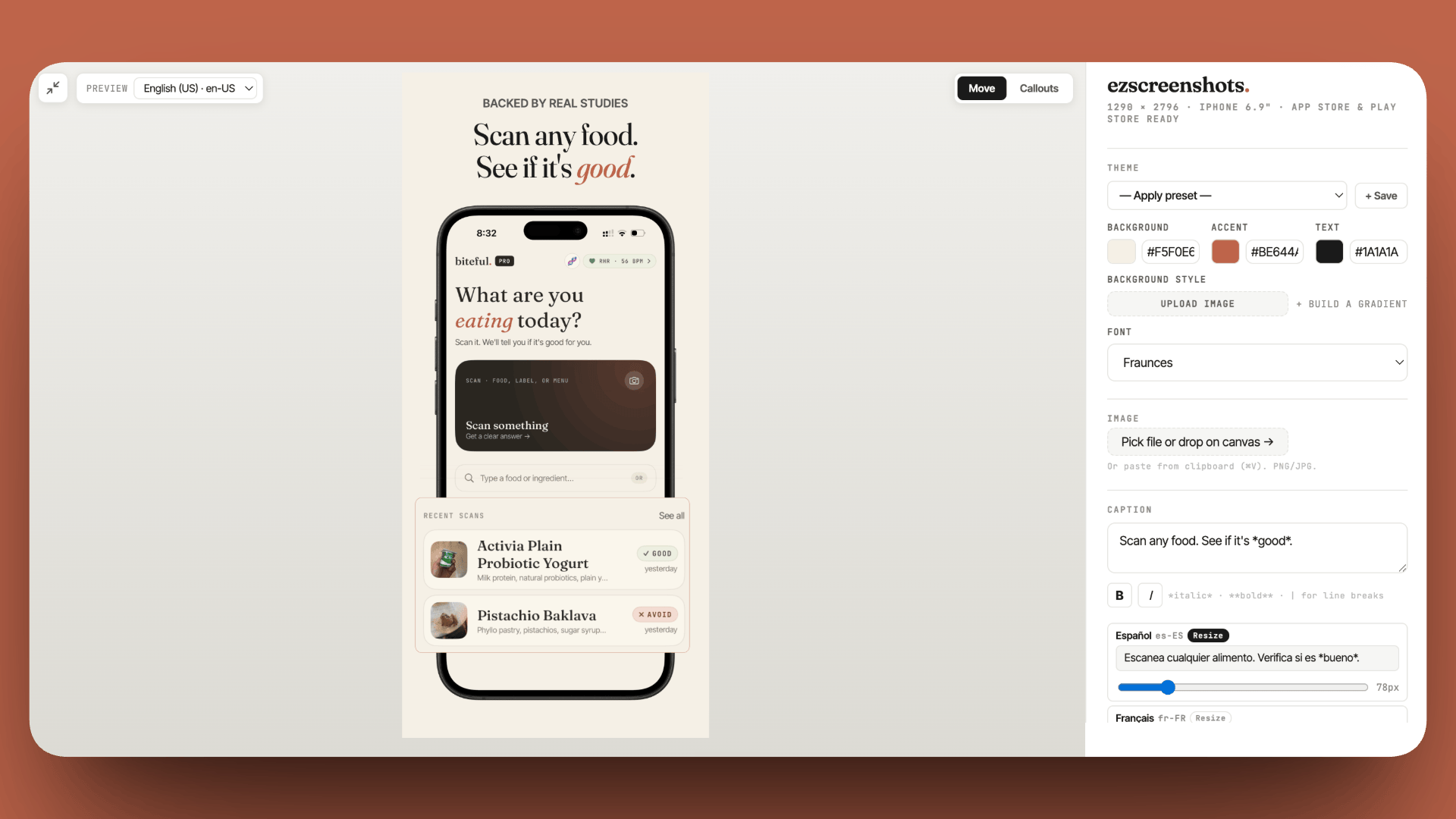
If you need multiple device sizes (e.g., iPhone + iPad), switch the canvas preset and re-export — ezscreenshots keeps your theme, fonts, and backgrounds intact so you just swap the size and export again.
Stop guessing screenshot sizes
ezscreenshots has every Apple and Android size built in. Pick a preset, drop your screenshot, export. Free, browser-based, no account needed.
Try it free →Quick reference: minimum required set
If you just want to get approved with the least effort:
| Platform | Size | Pixels |
|---|---|---|
| iPhone | 6.9" | 1260 × 2736 |
| iPad (if applicable) | 13" | 2064 × 2752 |
| Apple Watch (if applicable) | Ultra 3 | 422 × 514 |
| Android Phone | — | 1284 × 2778 (recommended) |
Upload 1-10 screenshots per locale. Apple allows up to 10 — use at least 4-5 for best conversion rates.
Localizing your screenshots
If your app supports multiple languages, you'll want localized screenshots with translated captions for each locale. This is where the workload multiplies: 5 screenshots × 10 languages = 50 exports.
The fastest approach: create your screenshots once with placeholder captions, then batch-translate and re-export for each locale. ezscreenshots has built-in AI translation that handles 20+ languages — what used to take hours becomes a few clicks.
Summary
- iPhone: Upload 6.9" (1260 × 2736) — everything else auto-scales
- iPad: Upload 13" (2064 × 2752) if your app supports iPad
- Watch: Upload Ultra 3 (422 × 514) if you have a watchOS app
- Android: 1284 × 2778 covers all modern phones
- Format: PNG or JPEG, 1-10 per locale
- Start big, scale down: Apple handles downscaling — never upload only small sizes