Why ratings matter more than most developers realize
Your app's star rating is visible in App Store search results before users tap through to your listing. A 4.7 with 200 ratings and a 3.2 with 12 ratings appear side by side in search — the first converts significantly better. Apple's ranking algorithm also considers rating quality and recency: apps with recent positive reviews rank higher for their target keywords than apps with old or sparse ratings.
For a new app, the first 20–30 reviews are disproportionately impactful. They establish the credibility signal that makes organic traffic convert, and they contribute to the algorithm signals that feed into keyword ranking. Getting those first reviews isn't optional — it's foundational.
The API: how iOS rating prompts actually work
iOS provides a single official mechanism for in-app rating requests: SKStoreReviewController.requestReview() (or requestReview(in:) for SwiftUI scenes). You call it; Apple decides whether to show the system prompt.
Three constraints govern this:
- Apple shows the prompt at most 3 times per 365-day period per device, regardless of how many times you call the API. Calls beyond that limit are silently ignored.
- Apple controls the display logic — calling the API is a request, not a command. Apple may suppress the prompt based on how recently it was shown, whether the user has already rated this version, or other signals you don't have visibility into.
- You cannot use custom UI to gate access to the system prompt. Specifically: showing a custom "Did you enjoy the app?" screen first and only calling
requestReview()if the user taps "Yes" is a prohibited dark pattern. More on this below.
The implication: you don't control whether the prompt appears — you only control when you ask. That makes timing the only real lever you have.
When to trigger the prompt
The principle: ask after a moment of success, not a moment of friction. The user should be in a positive state when the prompt appears — they've just accomplished something meaningful inside your app.
High-converting trigger moments, by app type:
- Utility/productivity apps: after the user completes their first meaningful task (exports a file, finishes a session, hits a milestone), or after the Nth successful use (5th time opening, 10th entry added)
- Games: after completing a level, especially a difficult one — users are in a peak satisfaction state immediately post-completion
- Habit/streak apps: after hitting a streak milestone (7-day streak, 30-day streak) — users who've built a habit have demonstrated investment in the app
- Subscription apps: after a user successfully uses a premium feature for the first time — they've unlocked value and are most likely to feel positively about the product
Low-converting (and annoying) trigger moments:
- On first launch or within the first session — the user hasn't formed an opinion yet
- During a task or workflow — interrupting active use creates frustration regardless of how the user feels about the app overall
- Immediately after an error, a crash recovery, or a confusing UI moment
- On a timer ("show after 3 days") with no correlation to user behavior — time-based triggers fire for both happy and unhappy users indiscriminately
What Apple prohibits (and enforces)
Apple's Guideline 5.6.1 is explicit: you may not manipulate or game the ratings system. The specific prohibited patterns:
Pre-filtering screens
Showing a custom screen that asks "Are you enjoying the app?" and only triggering requestReview() for users who tap "Yes" is a direct violation. The intent — routing unhappy users away from the rating system — is exactly what Apple is prohibiting. Apps caught doing this get rejected. The pattern is easy to spot during review because reviewers look for it specifically.
Incentivizing reviews
Offering in-app currency, premium features, extended trials, or any other reward in exchange for a review is prohibited. The review must reflect genuine user opinion, not transactional gratitude. This applies equally to negative incentives — you can't threaten to limit features unless a user rates the app.
Directing users to third-party review sites
Asking users to post reviews on external sites (Reddit, product review sites, etc.) and using those to pad your App Store rating is not allowed. In-app rating prompts must use the official SKStoreReviewController API.
Getting early reviews from TestFlight users
TestFlight users cannot leave App Store reviews — they're testing a beta build, not the released app. However, your TestFlight cohort is your warmest possible review audience: they've used the app before it launched, they have opinions, and they feel ownership over the product.
The approach: when your app goes live on the App Store, message your TestFlight users directly and personally — not a broadcast, an individual message — and ask them to download the released version and leave a review if they found the beta useful. Personal asks convert at dramatically higher rates than mass messages. This is covered in depth in the guide on the launch build-up strategy.
Responding to reviews: the underused lever
Developer responses to App Store reviews are visible to all users who see that review — including future users browsing your listing. A thoughtful response to a negative review signals that the developer is present and responsive, which can convert a skeptical browser into a downloader.
The mechanics in App Store Connect: go to your app → Ratings and Reviews → click "Reply" on any review. Your response appears publicly under the user's review. Apple sends the reviewer a notification that you've responded.
Response principles that work:
- Respond to every negative review within 48 hours for the first six months. Especially early negative reviews — they're disproportionately visible and a response turns a detractor into a signal of quality support.
- Don't be defensive. "Thanks for the feedback — we've logged this for the next update" is more effective than explaining why the user is wrong about the bug they reported.
- Reference a specific fix when one exists. "This is fixed in v1.2, live now" prompts users who've already left a negative review to update their rating — some will, and each update is a chance to improve your average.
- Acknowledge positive reviews too. A short "Thanks — glad it's working well for you" on a 5-star review reinforces the relationship and encourages future engagement.
Asking for a rating update after a fix
Users who left a low rating due to a bug or a missing feature can update their review — but only if they know the issue was fixed. Apple doesn't automatically notify reviewers when the app updates.
After shipping a fix for a commonly reported issue: respond to negative reviews that mention that issue and note the fix is live. Some users will update their review. Even a modest improvement in your average rating — from 3.8 to 4.1, for example — meaningfully affects conversion rate in App Store search.
This is one of the highest-ROI post-launch activities: you're improving your conversion lever (rating) without spending on ads or ASO. The only cost is the time to write the response.
The rating and listing flywheel
Ratings and screenshots reinforce each other. A high rating makes users more likely to tap your listing from search results. A strong first screenshot makes users more likely to download after tapping. Together they determine the conversion rate that feeds your organic ranking. Neither works without the other.
If you're investing time in getting reviews, it's worth pairing that with a screenshot audit. A listing with a 4.5 rating and a vague, low-contrast first screenshot still underperforms. ezscreenshots makes it fast to rebuild the first screenshot with a clear benefit caption — the conversion impact compounds with the rating improvement.
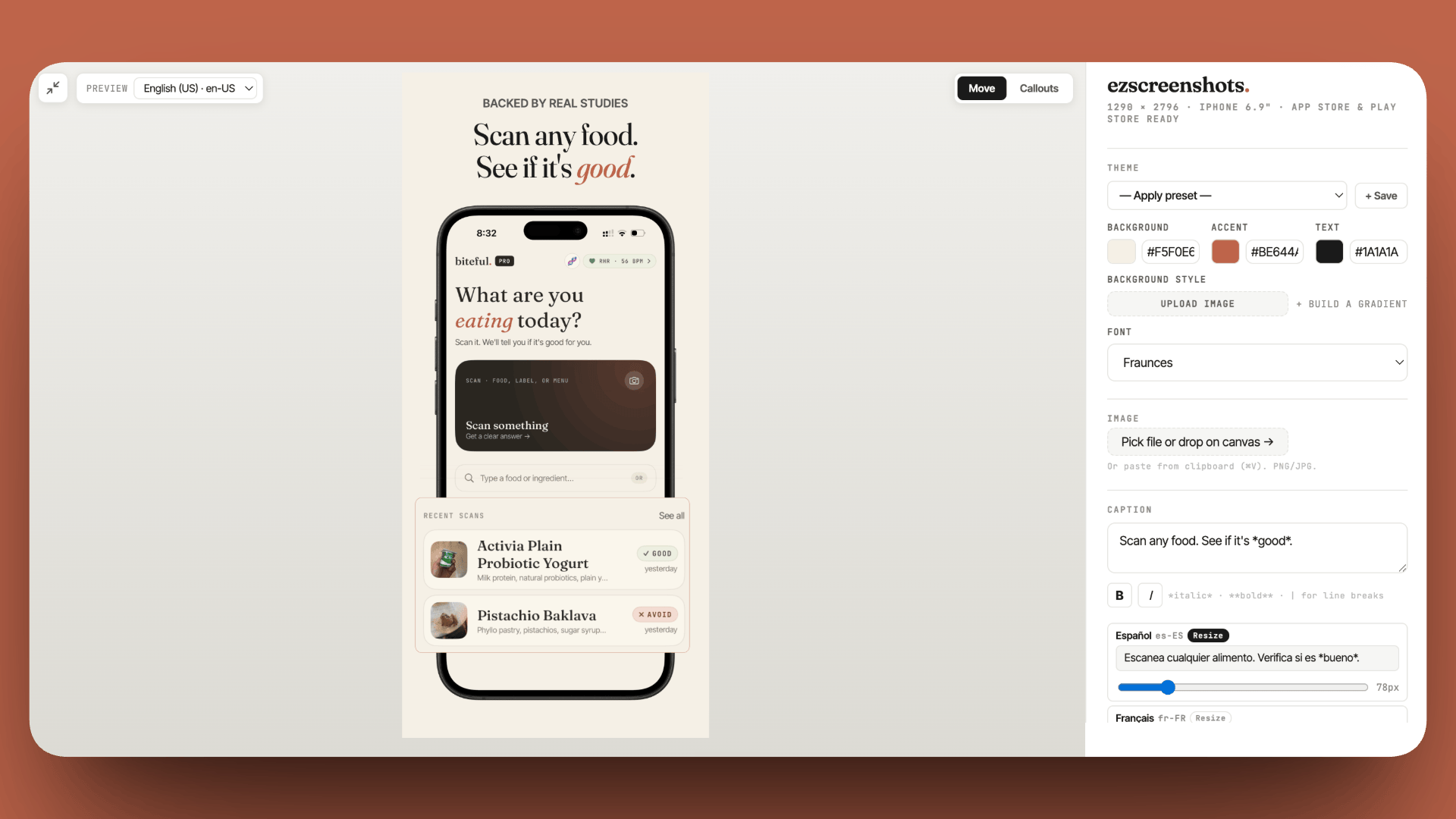
A great rating deserves a great listing
Once you've built a strong review base, make sure your screenshots convert the traffic it generates. Drop in your Simulator screenshot, add a clear benefit caption, export at the right dimensions. Free, no account needed.
Try ezscreenshots →Summary
- Apple limits prompts to 3 per user per 365 days — timing is your only lever; use
SKStoreReviewController.requestReview() - Trigger after a success moment: task completion, streak milestone, first use of a premium feature — not on first launch or during active work
- Pre-filtering is prohibited: custom "Did you enjoy the app?" screens that gate the system prompt are a Guideline 5.6.1 violation and a known rejection reason
- Incentivizing reviews (in-app currency, trial extensions) is prohibited
- TestFlight users are your warmest early review source — message individually when the app goes live, not as a broadcast
- Respond to every negative review within 48 hours for the first six months; reference specific fixes when they exist
- Notify reviewers of fixes via responses — some will update their rating, which improves your average without new downloads
- Rating reset on major updates is available in App Store Connect — use it when the current rating reflects an old, significantly worse version