The math adds up fast
Five localizations, three device sizes (6.9" iPhone, 13" iPad, and one more for good measure): you're already at 15 screenshot sets before you've shipped a single variant. Add a Custom Product Page for paid traffic and an A/B test on the default listing, and you're looking at 60+ individual files. Change the copy on frame 2 and you get to do it 60 times.
This is the screenshot-at-scale problem. It's not a problem most solo devs hit on their first app — but it shows up fast when you add a second language, start running search ads, or try to optimize your listing with CPP experiments.
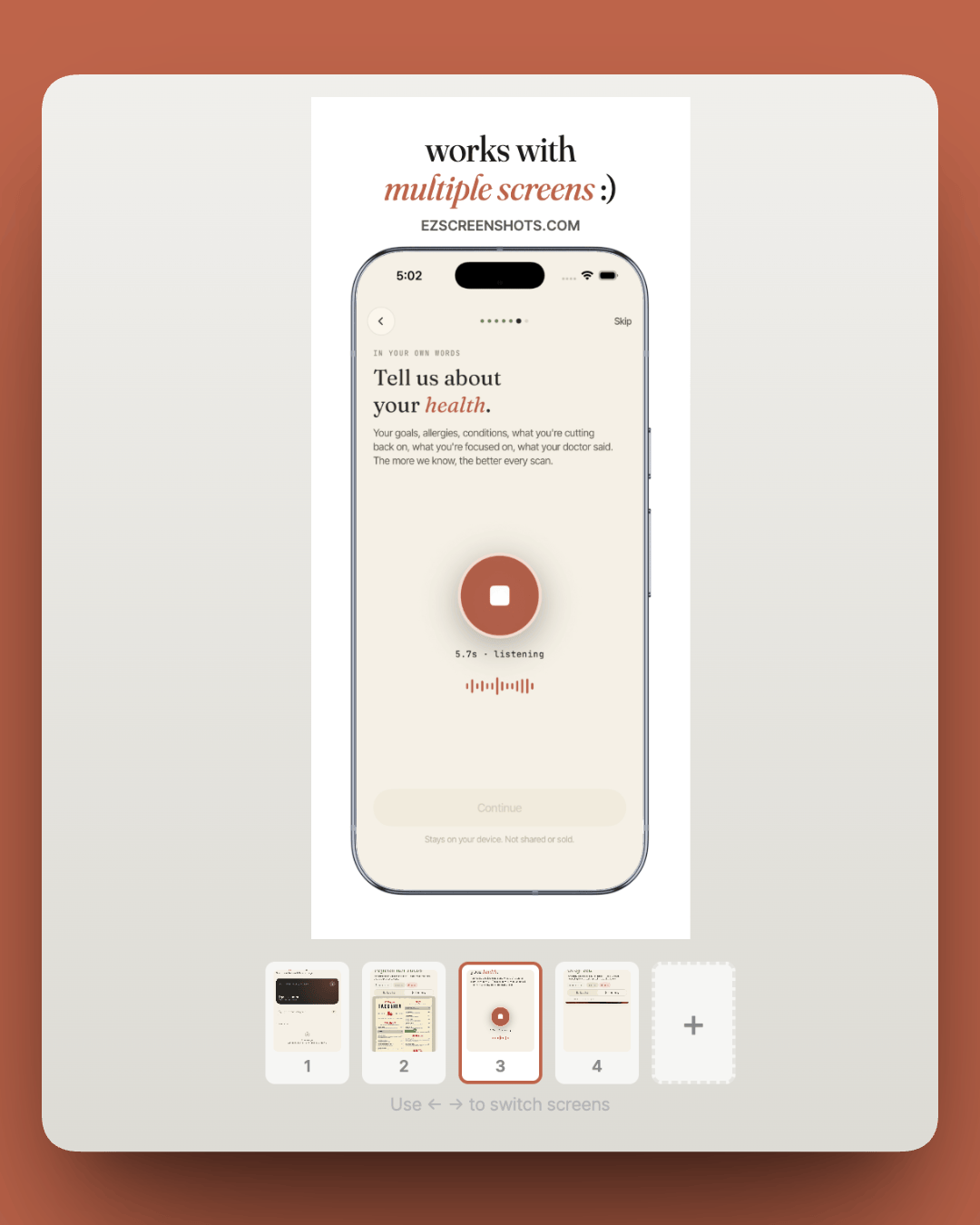
The good news: the workflow is solvable. A tool like ezscreenshots keeps themes and multi-screen layouts as reusable templates, so changing copy means editing once, not 60 times. But the approach you pick depends on how far down the scale problem you actually are.
The three layers of the problem
Layer 1: Device sizes
Apple technically requires two sizes: 6.9" iPhone and 13" iPad (if your app runs on iPad). Everything else auto-scales. In practice, you can get away with a single 6.9" set for all iPhones — Apple handles downscaling. See the full App Store screenshot size guide for the exact pixel dimensions.
So the device-size layer is largely a solved problem. Don't multiply your workload by uploading separate 6.5", 6.3", and 6.1" sets unless you have a specific reason (e.g. your app has a radically different layout on older devices).
Layer 2: Localizations
This is where things get genuinely hard. Translated captions are different lengths. Arabic and Hebrew run right-to-left. Japanese and Chinese are more information-dense — shorter strings, but different line break expectations. A layout that looks clean in English can overflow in German or get lost in Thai.
Multiply 5 localizations × 2 device sizes (iPhone + iPad) × 5 screenshots and you have 50 files. That's the minimum viable international launch before any A/B testing.
Layer 3: A/B tests and Custom Product Pages
Apple gives you two tools for screenshot experimentation: Product Page Optimization (A/B test your default listing, up to 3 treatment variants) and Custom Product Pages (up to 35 separate listings with unique screenshots, for different ad campaigns). Both require maintaining additional screenshot sets in parallel — and App Store Connect doesn't make it obvious which set is "live" where.
The practical solution most developers land on: folder-per-variant with a dated archive. screenshots/baseline, screenshots/cpp-paid, screenshots/ab-v1. Before overwriting, rename to -archived-2026-05. Low-tech but works.
How developers actually handle this
From the workflows people use in practice, there are three schools:
1. Design tools (Figma, Sketch)
Figma with linked components and variable-driven text is the most common approach for teams with a designer. You build one master file: device frame as a component, screenshot as a fill, caption as a variable. Change the variable value and all sizes update at once. Export all artboards in one batch.
The catch: Figma is a lot of setup for what's essentially a marketing asset. When you're solo and just need five clean screenshots in three languages, building a component library is overkill. It also doesn't solve the localization overflow problem — you still have to eyeball whether German text fits.
2. Code-based automation (Fastlane, scripts)
Fastlane's snapshot + frameit combination can fully automate screenshot capture and framing. A CI job launches the Simulator for each locale, captures the key screens, applies device frames and text overlays, and spits out a complete set. Changes to UI or copy automatically propagate.
The catch: setup takes serious time (4–5 hours minimum, realistically a day), the Fastlane text styling system is limited (no bold substrings, no custom fonts without workarounds), and the SwiftUI framing approach some devs use means you're redesigning your marketing UI in Swift instead of a visual tool. Worth it if you have 10+ localizations and ship updates frequently. Overkill otherwise.
3. Browser-based screenshot tools
Tools like ezscreenshots sit in the middle: you design once in a visual editor (no Figma setup required), save the theme, and export all screen sizes in one click. For localizations, AI translation handles the caption text per locale — you review and export a localized zip. No code, no Simulator setup, no artboard management.
The trade-off: less automation than Fastlane (you're still involved in the export flow), but dramatically less setup and more design flexibility. The right choice for most solo developers and small teams.
Solving the localization layer
Localization is the hardest part of screenshot scale, and it's where the most time gets wasted. The three main approaches:
Manual translation + visual check
Translate captions via your translation service of choice, paste into your design tool, check for overflow. Tedious but accurate. Suitable if you support 2–3 languages and release infrequently.
Figma variables linked to strings files
Connect Figma's variable system to your existing .strings localization files, then let Figma auto-populate captions per locale. You still need to eyeball overflow, but the copy entry step goes away. Works well if Figma is already your source of truth.
AI translation in-tool
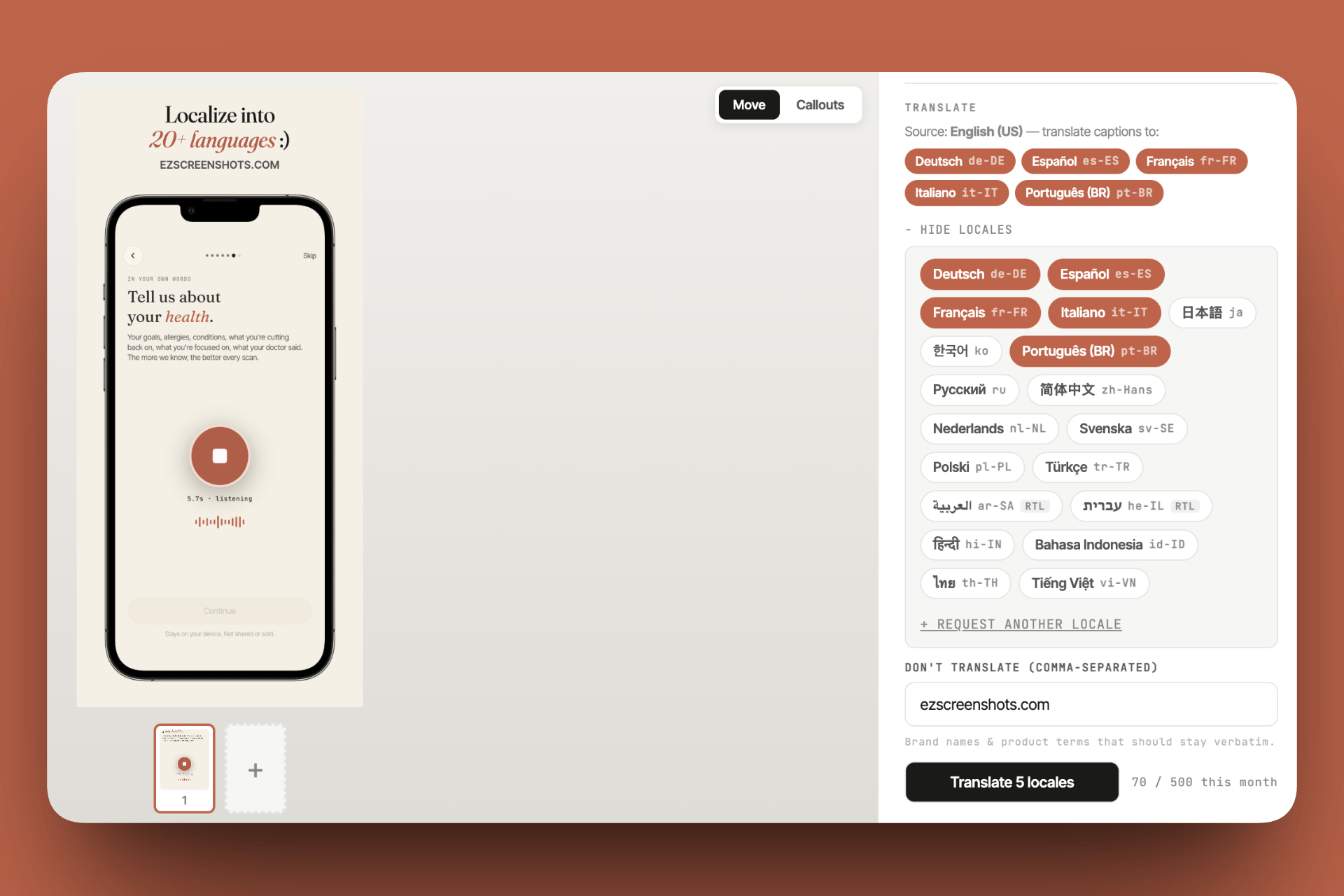
ezscreenshots has built-in AI translation — add your target locales, translate all captions at once, preview each locale in the editor before exporting. The preview step is what saves you: you catch "German title overflows by 2 lines" before exporting all 50 files.
A practical workflow for most apps
This covers 80% of apps — iPhone + iPad, up to 10 localizations, no CPP complexity:
- Design your base set in English. 5–7 screens, consistent theme (background, font, device frame). Save it as a project so the theme is reusable.
- Export your 6.9" iPhone set. That's all you need for iPhones — Apple auto-scales everything smaller.
- Switch to iPad preset, re-export. The theme carries over — just swap the canvas size. Check that captions still fit (portrait iPad is taller, not just wider, so you usually have more room).
- Add your locales. Let AI translation handle the first pass, then review each locale in the preview. Fix any that overflow or read oddly.
- Export localized zip. One zip per device size, organized by locale. Upload to App Store Connect.
When to invest in Fastlane automation
Fastlane + Simulator automation starts paying off when:
- You have 8+ localizations and release updates frequently (the per-update time savings compound)
- Your screenshots need to show live, current app data (a price tracker, a calendar app, anything where the UI changes)
- You have a CI pipeline already and the incremental complexity is low
It's overkill when you're launching your first app, when your screenshot designs are stable, or when the setup time exceeds a year's worth of manual updates. For most solo developers, that threshold is around year two.
Tracking what's live where
App Store Connect doesn't surface a "currently live screenshots" view in any useful way. The practical system that works:
- Folder-per-variant:
screenshots/baseline,screenshots/cpp-google-uac,screenshots/ab-v2-darker-bg - Archive before overwriting: Rename old folders to
screenshots/baseline-archived-2026-03before replacing. Never delete — App Store review can roll back without warning. - One-line note per variant: A
README.mdin the screenshots folder with one line per variant: what it tests, when it launched, current status (live / paused / archived).
No tool does this better than a folder and a text file. Don't overthink it.
Stop rebuilding the same screenshots
ezscreenshots saves your theme across all screens and sizes. Add localizations, preview every language, export a clean zip — without touching 60 separate files.
Try it free →Summary
- Device sizes: You only need 6.9" iPhone + 13" iPad — Apple auto-scales the rest
- Localizations: The real scaling problem — AI translation + per-locale preview before export is the fastest workflow
- A/B tests / CPPs: Folder-per-variant with dated archives beats any tool
- Automation: Fastlane pays off at 8+ locales with frequent releases; overkill otherwise
- Browser tools: Best for solo devs who need design flexibility without code or Figma overhead