The confusion worth clearing up first
A developer posted on r/iosdev: "Apple reviewer told me I can't use in-app screenshots?" They'd received rejection feedback saying their previews were too similar to each other and that their screenshots didn't accurately represent the user experience. They were confused — they could see plenty of App Store listings using screenshots, so why were theirs a problem?
The answer, as a commenter correctly identified: the reviewer was almost certainly talking about in-app purchase promotional images, not regular App Store screenshots. These are two entirely different things in App Store Connect, with different rules, different upload slots, and different consequences when you get them wrong.
This confusion is more common than it should be, because App Store Connect uses similar language for three distinct concepts. Here's how to tell them apart.
The three screenshot types in App Store Connect
1. App Store screenshots
These are the 1–10 images shown on your App Store product page. They're what users see before downloading your app. You upload them per-device-size, per-locale. ezscreenshots is built specifically for these.
Rules: Must show actual app UI. Marketing overlays (backgrounds, captions, device frames) are allowed. Must be the correct pixel dimensions for the device slot. Must accurately represent the current version of the app.
Required: Yes — you can't submit without at least one screenshot per platform your app supports.
2. App Preview (video)
Optional 15–30 second videos shown on your product page, before the screenshots. They autoplay muted for users browsing the App Store.
Rules: Must show actual UI from the running app (no animated mockups, no motion graphics that don't reflect the app). Must be captured on-device or in Simulator. Can include voiceover and text overlays, but the underlying footage must be real. Apple's App Preview guidelines are stricter than screenshot guidelines — reviewers pay closer attention to video.
Required: No. Optional, but high-impact when done well.
3. In-App Purchase promotional images
These are small images (1024 × 1024 px) that appear next to each of your in-app purchase items in the App Store's in-app purchase listing section — visible on your product page and in search results. Every IAP can have one.
Rules: Must be a promotional image for the specific IAP — not a screenshot of the app. Must be distinct between IAPs (you can't use the same image for your monthly and annual plans). Apple specifically says these should not be screenshots — they're meant to be icons or graphics representing what's being purchased.
Required: No. But if you upload them, each one must be visually distinct from the others.
What "screenshots must reflect the user experience" actually means
For regular App Store screenshots, Guideline 2.3.3 requires that screenshots "accurately reflect the app and should not include images, text, or features that are not part of the actual user experience."
In plain terms, this means:
You must show real app UI
The screen inside your screenshot needs to be captured from the actual running app — not a Figma mockup, not a reimagined "ideal" version, not a prototype that didn't make it into the build. The app UI shown must match what users encounter after downloading.
What this doesn't mean: your screenshot can't be polished. Background colors, caption text, device frame overlays, and other marketing layers are all explicitly fine. It's the app UI itself that must be real — everything else is marketing presentation.
You must show features that exist
Every screen you show must represent a feature that actually exists in the current version of the app. A common rejection trigger: screenshots taken from a development build that included a feature which was cut before submission. If you show it in screenshots, it needs to be in the app.
Text overlays must be accurate
The marketing captions you add must describe things the app actually does. "Export in one click" is fine if that's true. "The world's most powerful editor" is a superlative that can't be verified and could be flagged. See the full list of screenshot rejection reasons for what to watch out for in caption copy.
What you're explicitly allowed to do
The "must reflect user experience" rule intimidates developers into thinking screenshots need to be raw, unpolished app captures. They don't. Here's what's unambiguously permitted:
| Element | Allowed? | Notes |
|---|---|---|
| Real app UI from Simulator | Yes | Standard approach |
| Marketing caption text overlay | Yes | Must be accurate — no false claims |
| Background color or gradient | Yes | Replaces plain white/grey |
| Device frame overlay (iPhone, Android) | Yes | Common in polished App Store listings |
| Multiple app screens in one image | Yes | Collage or strip layout |
| Callout zoom bubbles | Yes | Highlighting a UI detail |
| Figma mockup replacing real UI | No | Must be real running app |
| Features not in the submitted build | No | Core 2.3.3 violation |
| Unverifiable superlative claims | No | "Best app ever" etc. |
The fast workflow: real screenshots, polished presentation
The right approach threads both requirements: real app UI, professional marketing presentation. In practice:
- Take raw screenshots from Simulator — your actual app, the actual screens you want to feature, no cleanup needed.
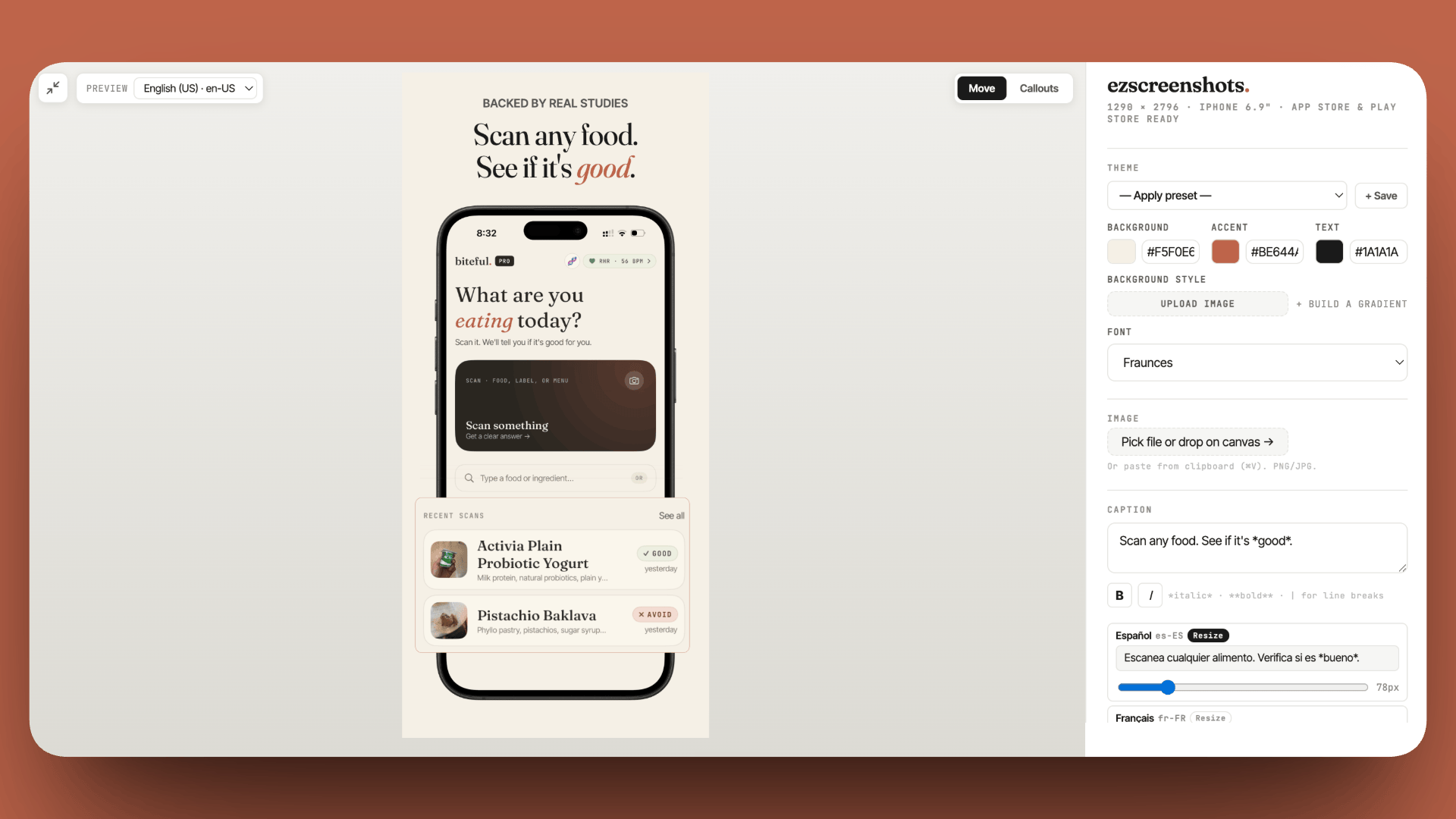
- Drop them into ezscreenshots — add a background, caption, device frame. The marketing layer goes on top; the real UI stays intact underneath.
- Export at the correct dimensions — the size presets handle this automatically.
- Upload to App Store Connect.
The result satisfies guideline 2.3.3 (real app UI) while looking as polished as any top App Store listing.
If your rejection was about IAP images
If you're reading this because a reviewer flagged your IAP promotional images, the fix is straightforward:
- If you have multiple IAPs with the same image: create a distinct image for each — different color, different icon, different composition. They don't need to be elaborate; just clearly different.
- If you accidentally uploaded screenshots as IAP images: replace them with icon-style graphics representing each purchase (e.g. a "Pro" badge for the Pro tier, a calendar icon for the annual plan).
- If you don't care about IAP images: delete them entirely. They're optional. Your IAPs will still appear on your product page; they just won't have promotional images.
Polished screenshots that pass review
Real Simulator screenshots as the base, professional marketing layer on top. Drop one in, add a caption and background, export at the right dimensions. Free, no account needed.
Try it free →Summary
- Three types: App Store screenshots, App Preview videos, and IAP promotional images — different rules for each
- "Previews too similar" rejections are almost always about IAP promotional images, not regular screenshots
- Regular screenshots must show real app UI — but backgrounds, captions, device frames, and other marketing overlays are fully allowed
- IAP promo images are optional; if you use them, each must be visually distinct
- App Previews (video) are stricter — underlying footage must be from the real running app, not motion graphics