First: some rejections are just noise
A developer on r/Entrepreneur described getting rejected seven consecutive times for a screenshot that "didn't accurately represent the user experience." Same screenshot, no changes. On resubmission eight it passed — unchanged. Comments flooded in with identical stories: rejected for X, resubmit with zero changes, approved the next day by a different reviewer.
This is real. Apple's review is done by humans, guidelines leave room for interpretation, and consistency across reviewers is imperfect. Some rejections are random. Resubmitting without changes sometimes works, and the developer community has broadly accepted this as part of the game.
That said — most screenshot rejections aren't random. There are concrete, documented reasons Apple rejects screenshots, and avoiding them keeps you out of the lottery in the first place. Here's the complete list.
One reassuring thing before we dig in: a screenshot rejection almost always comes back as Metadata Rejected rather than a full rejection — which means you can fix the screenshots and resubmit the same build, no new upload required.
The governing guideline: 2.3.3
Apple's App Store Review Guideline 2.3.3 is the source of almost every screenshot rejection:
"Screenshots, previews, and promotional text should accurately reflect the app and should not include images, text, or features that are not part of the actual user experience."
That's the whole rule. Everything below is a specific interpretation of it.
Rejection reason 1: Screenshots don't reflect the actual app UI
This is the most common rejection and the vaguest. It covers:
- Showing a screen that existed in a previous version but was removed
- Showing a feature that's behind a paywall without disclosing it
- Using a design mockup that looks better than the real app (polished Figma vs. actual running app)
- Showing an empty-state UI that doesn't match what real users see after onboarding
How to avoid it: Your screenshots should show the actual app running, not a reimagined version. Marketing overlays — backgrounds, captions, device frames — are fine. The app UI inside the frame needs to be real. A tool like ezscreenshots keeps the workflow honest: you drop in real simulator screenshots, add a marketing layer on top, and export. The UI inside is always real because you captured it from the actual running app.
Rejection reason 2: Wrong pixel dimensions
App Store Connect validates screenshot dimensions on upload — this is a hard rejection, not a soft one. Common mistakes:
- Exporting at 1× instead of the native resolution (e.g. 630 × 1368 instead of 1260 × 2736 for 6.9")
- Uploading a screenshot sized for 6.5" to the 6.9" slot (dimensions differ)
- Exporting with a canvas that's 1 or 2 pixels off due to rounding in a design tool
How to avoid it: Use a tool with built-in size presets. The complete App Store screenshot size guide lists every accepted dimension. Required sizes: 6.9" iPhone (1260 × 2736) and 13" iPad (2064 × 2752).
Rejection reason 3: Showing features that don't exist
Showing functionality your app doesn't have — even accidentally — will get you rejected. This includes:
- Screenshots from a prototype that never made it into the released build
- Features that are planned but not yet shipped
- UI elements that were removed after the screenshots were made but before the build was submitted
How to avoid it: Take screenshots from the same build you're submitting (or very close to it). Update your screenshot set whenever you ship UI changes. Keep a note of which app version your current screenshots reflect.
Rejection reason 4: Status bar problems
Apple doesn't require a status bar in screenshots, but if you include one, it has to look realistic. Common issues:
- A status bar showing full carrier signal on a device that doesn't support cellular
- An obviously wrong time (anything other than a clean time like 9:41)
- A status bar with notification badges or low battery indicators that look alarming
How to avoid it: The simplest fix is to hide the status bar entirely. Drop your screenshot into a marketing frame with a clean background and caption — no status bar visible at all. If you do include the status bar, 9:41 AM, full signal, full battery, no notifications is the safe default (it's what Apple uses in all their product shots).
Rejection reason 5: Misleading text overlays
Marketing captions are allowed. Misleading claims are not. The line:
- Allowed: "Track expenses in 10 seconds" (describes the experience)
- Allowed: "#1 Productivity App" if you can back it up with a chart or source
- Not allowed: "The best app in the App Store" (unverifiable superlative)
- Not allowed: Claiming awards, ratings, or press coverage you don't have
- Not allowed: "Free" in a caption when the app is paid or the feature shown is paywalled
Captions need to describe what the app actually does. They don't need to be dry — persuasive, benefit-focused copy is fine — but they can't make false or unverifiable claims.
Rejection reason 6: Competitor names or trademarks
Screenshots that show competitor app names, logos, or trademarks can trigger both a guideline 2.3 rejection and a broader legal issue. This includes:
- A "compared to [Competitor]" table visible in the screenshot
- Side-by-side comparison images featuring another app's UI
- Screenshots showing your app alongside a named competitor in a way that could imply endorsement
How to avoid it: Keep comparison tables on your marketing website, not in your App Store screenshots. If you want to communicate a competitor advantage, do it through feature captions ("No subscription required") rather than explicit comparisons.
Rejection reason 7: Wrong platform screenshots
Uploading an iPhone screenshot to the iPad slot (or vice versa) will fail dimension validation. More subtle: uploading a screenshot that shows iPhone UI in the iPad slot — technically correct dimensions but showing the wrong device class — can trigger a 2.3.3 rejection because it doesn't accurately represent the iPad experience.
How to avoid it: Take separate screenshots on the correct Simulator for each platform. If you're using a marketing tool to frame them, use the correct preset (iPhone vs. iPad). See the guide on iPad screenshots for iPhone apps for the full decision tree.
Rejection reason 8: Inappropriate or sensitive content
Screenshots are subject to the same content policies as the app itself. A screenshot showing violence, adult content, or other guideline-violating material will be rejected even if the app's underlying rating system would technically allow it. Reviewers see the screenshot before they run the app.
This also catches screenshots that show real people without consent, or that use stock photos of people in ways that could be misleading about your app's user base.
What to do when you're rejected for "doesn't accurately represent user experience"
This is the catch-all rejection with the widest interpretation range. When you receive it:
- Compare your screenshots against the running app. Walk through each screen shown — does it look exactly like what a user sees after installing? Any difference is a liability.
- Check your text overlays. Any claim that could be read as misleading? Remove or soften it.
- Check your status bar if it's visible.
- If you can't find anything wrong, resubmit unchanged. A significant fraction of these rejections resolve on resubmission with a different reviewer. Don't change things randomly — that risks introducing a real problem where there wasn't one.
- If it happens again, use the App Review Board. You can appeal directly at developer.apple.com/app-store/review/appeals. Document that the same screenshots were approved on previous builds. Prior approval history is useful evidence.
What's explicitly allowed
Worth being clear on what Apple does permit, since the restrictions above might make it seem like screenshots can only be raw app captures:
- Marketing text overlays — captions, headlines, subtitles on top of the app screenshot
- Device frame overlays — adding an iPhone or Android device mockup around your screenshot
- Solid or gradient backgrounds — replacing the default white/grey background with a color
- Multiple app screens in one screenshot — showing a "strip" or collage of screens
- Lifestyle imagery — a hand holding the device, a desk scene — as long as the app UI is visible and accurate
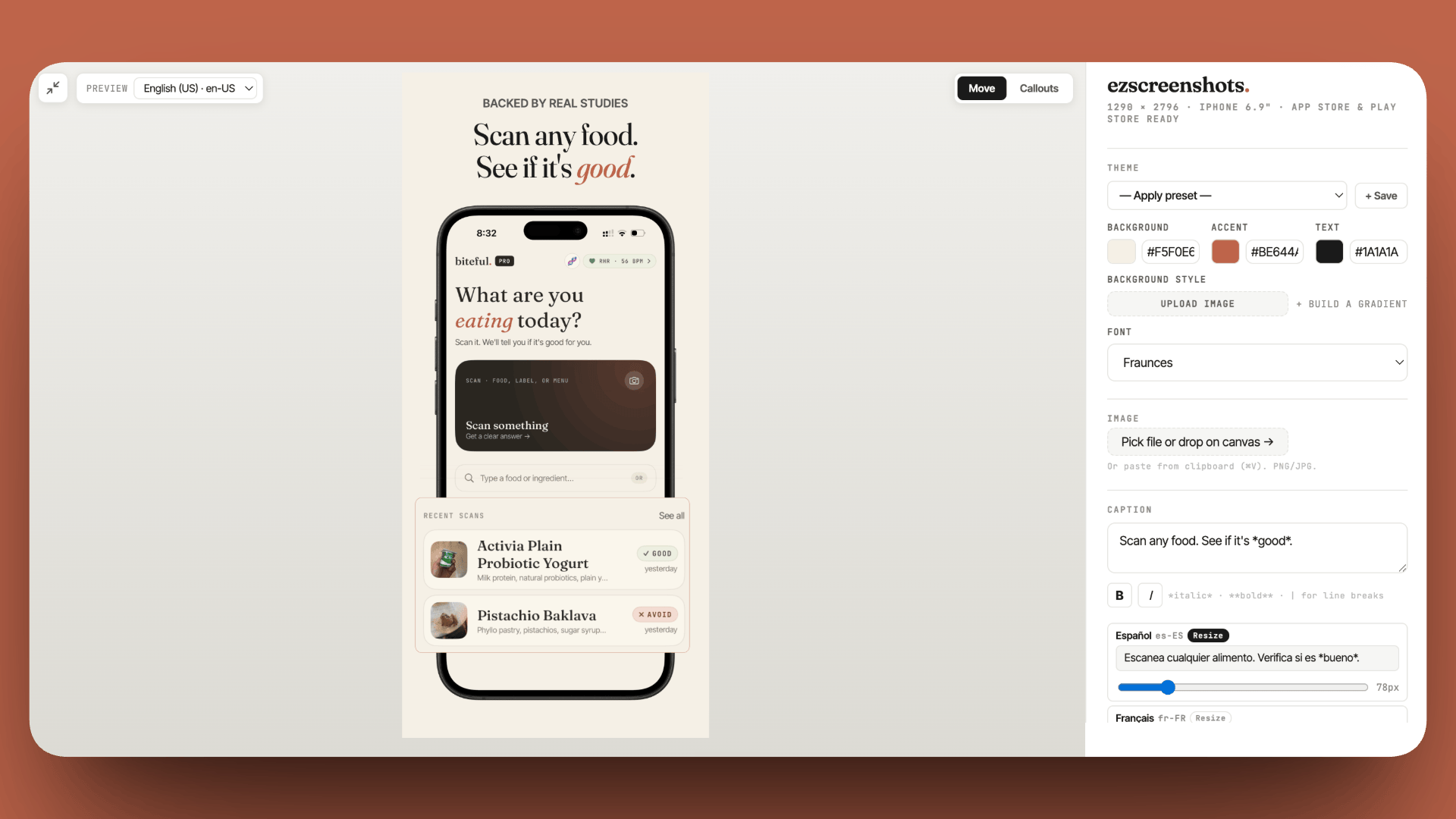
Screenshots that pass review, first time
Drop in your real simulator screenshots, add a caption and background, export at the exact right dimensions. ezscreenshots handles the dimensions automatically so wrong-size rejections never happen.
Try it free →Quick checklist before you submit
- Screenshots taken from the current build (not a prototype or older version)
- Correct pixel dimensions for each device slot — check the size guide
- Status bar hidden, or showing 9:41 / full signal / full battery
- No claims in caption text that you can't verify
- No competitor names or trademarks visible
- iPad screenshots show iPad UI (if your app supports iPad)
- No content that would violate content guidelines if it were in the app itself