Why this question comes up
Some apps make the most sense in context — a widget app, a home screen customization tool, a lock screen app, or any app whose killer feature is visible outside the app itself. To show that context in your App Store screenshots, you need a home screen. And a real home screen has real app icons on it — which means your competitor's apps, your email client, your social apps, all visible in your marketing screenshots.
Developers want to avoid this for two reasons: featuring competitors' branded icons feels awkward, and there's a real worry that showing another company's trademark without permission could cause a rejection. So the question arises: can you just swap in fake generic icons?
What Apple's guidelines say (and don't say)
Guideline 2.3.3 says screenshots must "accurately reflect the app." Guideline 2.3.7 prohibits using "Apple's own images, icons, or screenshots" without permission. There is no explicit guideline that bans home screen screenshots or fake icons specifically.
In practice, the rule that matters is 2.3.3: whatever you show must be real or clearly be a design element (like a marketing overlay). A fabricated home screen full of placeholder icons falls into a grey zone — it's not "accurate" in the literal sense, but Apple's intent behind 2.3.3 is to prevent apps from misrepresenting their features, not to prevent contextual screenshots.
The three approaches, ranked by safety
1. Use only Apple's own apps (safest)
Apple's own apps — Clock, Calendar, Messages, Photos, Settings — are the safest choice for filler icons when you need a home screen context. You're not featuring a competitor, you're not using a third-party trademark, and the result looks like a realistic iPhone home screen that every user recognizes.
One developer in the thread summed this up well: "I filled a screen with Apple's own apps and my widget and took screenshots. Didn't cause any issues when submitting." This approach passes review consistently.
2. Build a mockup UI that looks like a home screen but isn't one (safe)
If your app includes home screen context — say, a widget configurator — you can build a mockup screen within the app that displays a widget preview with neutral placeholder icons. Several developers do this because it lets them control the exact layout, labels the elements clearly ("Your widget, here"), and avoids any trademark issue entirely.
This takes more dev work but produces the cleanest screenshots because you control exactly what's shown.
3. Generic placeholder icons over a real home screen (grey area)
Taking a real home screen screenshot and using a photo editor to replace third-party icons with generic colored squares or placeholder icons is the approach the original question was asking about. This works in practice for many developers, and the intent is clearly to avoid misrepresentation, not to cause it.
The risk: it's not a real home screen, and a strict 2.3.3 reading could flag it as not accurately reflecting the actual experience. If your app is about home screen customization and you show a generic fake home screen, a reviewer might ask "is this what it actually looks like?"
Recommendation: If you go this route, keep the overall structure realistic. Don't swap in icons that look better than reality — just neutral replacements. And make sure the screenshot is genuinely about showing your app's feature, not the home screen itself.
4. Real home screen with real third-party icons (higher risk)
Showing a real home screen with a real mix of apps — including competitors or well-known branded apps — is legally murkier. Using another company's trademark in your marketing materials, even incidentally, can be a basis for rejection under the "accurate representation" guideline or a broader dispute.
The practical risk is low for incidental inclusion (a home screen where Instagram happens to be visible in the background) but higher for prominent placement (an app icon that's clearly front-and-center in the screenshot composition).
What about App Previews (video)?
App Preview videos follow the same guidelines as screenshots. The complication with video is that you can't easily composite fake icons over a real recording — you'd need to either record from a cleaned-up Simulator, build an in-app mockup, or use screen recording from a device where you've replaced all third-party icons beforehand.
The Simulator approach is the most practical for most developers: set up a clean Simulator instance with only Apple's own apps installed, then record your App Preview from there. No third-party icons, no trademark concerns, and the Simulator's clean appearance often looks better in marketing video than a cluttered real device screen.
The bigger question: should you show the home screen at all?
Before solving the fake-icons problem, it's worth asking whether home screen context is actually the best use of your screenshot slots. Apple reviewers have noted that screenshots should focus on in-app experience — the home screen is technically outside your app.
For most apps, the home screen context isn't necessary and the screenshot real estate is better spent on core in-app screens with clear captions. A widget app is the clearest exception: the whole point is the home screen, so showing it is justified. But if you're showing the home screen just because it "looks nice," reconsider — it might be a weaker screenshot than a focused in-app screen with a strong caption.
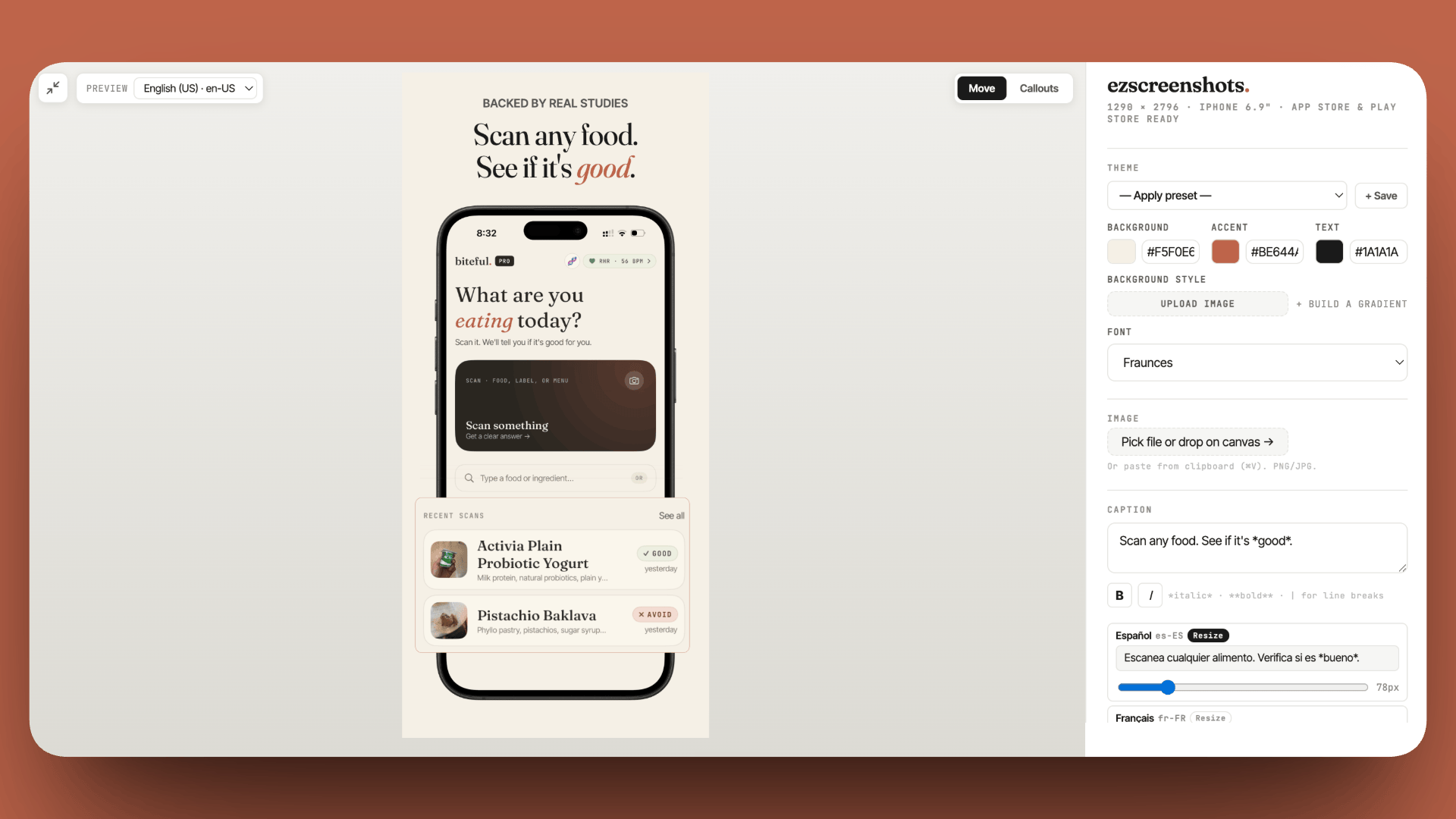
What's clearly allowed: overlay elements
While the home screen question has grey areas, the following are unambiguously allowed by Apple and produce clean, professional screenshots without any trademark concerns:
- Marketing text overlays on top of in-app screenshots (captions, headlines)
- Device frame mockups around your in-app screenshot (iPhone frame, iPad frame)
- Callout zoom bubbles highlighting a specific UI element
- Background color or gradient behind a device frame
- Multiple in-app screens shown as a collage or strip
These approaches — used in ezscreenshots and every major screenshot tool — focus on your app's actual UI and sidestep the home screen question entirely. For most apps, they produce better screenshots anyway: cleaner composition, clearer message, no trademark grey areas.
If you get rejected for icons or home screen content
The rejection will typically cite guideline 2.3.3 ("does not accurately represent the user experience") or occasionally 5.2 (intellectual property). In your response:
- Don't argue about whether the icons are technically allowed — just fix it.
- Swap the problematic screenshot for one focused on in-app UI.
- If you genuinely need to show home screen context (widget app, etc.), replace third-party icons with Apple's own apps and resubmit.
- In your reviewer notes, briefly explain what the screenshot is showing ("This screenshot demonstrates the widget on the iOS home screen — third-party app icons have been replaced with Apple's own apps to avoid any trademark concerns").
Screenshots that focus on what matters: your app
Drop in your in-app screenshots, add captions and a background, export at the right dimensions. No home screen, no icon questions, no grey areas.
Try it free →Summary
- No explicit Apple rule bans fake icons or home screen screenshots — the relevant guideline is 2.3.3 (accurately represent the experience)
- Safest approach: Use only Apple's own apps for home screen context (Clock, Calendar, Messages, etc.)
- Also safe: Build an in-app mockup that shows your widget/feature in a controlled, labeled environment
- Grey area: Generic placeholder icons replacing real app icons — works in practice, not explicitly permitted
- Higher risk: Prominently featuring third-party branded app icons
- Best default: Skip the home screen entirely and use focused in-app screenshots with strong captions — better conversion, zero ambiguity