Screenshot dimensions and limits
Google Play's screenshot requirements are defined in the official Play Console help documentation. Unlike Apple, which requires exact pixel dimensions per device class, Play accepts a range:
| Requirement | Value |
|---|---|
| Minimum screenshots | 2 |
| Maximum screenshots | 8 |
| Minimum dimension (either side) | 320px |
| Maximum dimension (either side) | 3840px |
| Max file size | 8 MB per screenshot |
| Format | JPEG or 24-bit PNG (no alpha) |
| Aspect ratio | No restriction, but the longer side must not be more than 2× the shorter side |
The practical recommended size for phone screenshots is 1080×1920px (portrait) or 1920×1080px (landscape). These fill the display cleanly on modern Android devices and look sharp at the 2x density most high-end phones use. Submitting at lower resolutions (e.g. 480×854px) is technically valid but will appear blurry on AMOLED screens.
For tablet screenshots, the recommended size is 1600×2560px (portrait) or 2560×1600px (landscape). Google does not require tablet screenshots, but they display in Play Store listings on large-screen devices when present — and with foldables and tablets growing as a platform share, adding them is increasingly worth the effort.
The feature graphic
The feature graphic is a 1024×500px banner that appears at the top of your app's Play Store listing page — above the screenshots, below the app name and rating. It's also used when your app is featured in editorial collections. It is required if you want to upload a promo video (YouTube link); without a feature graphic, the video option is unavailable in Play Console.
| Requirement | Value |
|---|---|
| Dimensions | 1024×500px (exact) |
| Format | JPEG or 24-bit PNG (no alpha) |
| Max file size | 1 MB |
The feature graphic is a banner, not a screenshot — it's designed to show your app's brand identity: icon, name, and a short tagline. Keep text minimal (it scales down when featured in smaller contexts) and make sure the center 80% of the image contains your key visual, since the edges may be cropped on some device sizes.
What content gets screenshots rejected
Google's Developer Program Policy applies to screenshots as well as the app itself. Common rejection and takedown triggers:
- Sexually suggestive imagery — even borderline content in screenshots triggers policy violations. Google's automated detection is aggressive here; anything that could be misread as adult content in a cropped thumbnail is risky.
- Misleading claims — screenshots that promise functionality the app doesn't deliver ("unlimited free storage" when there's a 5GB cap, "no ads" when there are ads). Google both reviews listings on submission and responds to user reports after publication.
- Impersonation — using logos, UI elements, or branding from another app or company in your screenshots. This includes showing a famous app's interface as if your app integrates with it when it doesn't.
- Intellectual property violations — using copyrighted images, trademarks, or character likenesses without permission. Stock photo licenses that permit "editorial use" often don't permit use in promotional assets; verify your license terms.
- Text or images promoting non-Play distribution — screenshots that include URLs, QR codes, or calls to action pointing users away from the Play Store.
How the Play Store listing layout affects conversion
The Play Store displays screenshots differently from the App Store in a few ways that affect what you should optimize:
Screenshots appear below the fold by default
On Android phones, when a user taps through to your app's Play Store page, they first see the app name, icon, install button, and rating. Screenshots appear below that fold — the user has to scroll down to see them. This means the icon and app name are doing more conversion work on Play Store than on App Store, where the first screenshot is visible without scrolling.
The implication: your first screenshot still matters (it's the first thing visible when users scroll), but the icon needs to be strong enough to drive installs before the user ever reaches the screenshots. A compelling icon + clear app name can produce installs from users who never scroll to screenshots at all.
Screenshot strip is horizontal
Play Store displays screenshots in a horizontally scrollable strip, showing roughly 1.5 screenshots at a time on a typical phone screen. The first screenshot is the most important; each subsequent one requires an active swipe. Design your screenshots in order of descending importance — the most compelling content first, supporting detail later.
No search result screenshot crop
Unlike the App Store, Google Play search results don't show a cropped screenshot alongside your listing. Play Store search results show icon + name + rating + install count. Screenshots only appear after a tap-through. This means caption placement in the "top third" (critical for App Store search result visibility) is less important on Play — what matters more is that the screenshot reads clearly at the horizontal strip size.
Play Store vs App Store screenshot strategy
| Google Play | App Store | |
|---|---|---|
| Screenshot dimensions | Flexible range (320–3840px) | Exact per device class |
| Visible in search results | No — icon only in search | Yes — first screenshot cropped |
| Caption placement priority | Anywhere readable in the strip | Top 40% (search crop visibility) |
| Max screenshots | 8 | 10 |
| Feature/promo banner | Yes — feature graphic (1024×500) | No direct equivalent |
| Rejection timing | Pre- and post-publication | Pre-publication only |
| Keyword indexing | From description (no keyword field) | Name, subtitle, keyword field |
Making screenshots that work for both stores
If you're shipping on both Android and iOS, you don't need two separate screenshot design sessions — you need two export passes. The visual design (background, captions, framing) can be identical. What changes is the export dimension and, for the App Store, tighter caption placement in the top third.
ezscreenshots has presets for both stores: the Android Phone preset exports at 1080×1920px with the correct Android device frame; switching to any iPhone preset exports at Apple's required dimensions with the matching iPhone frame. Drop your screenshot in once, export for both platforms. The same caption works on both — just verify that on the iOS preset it sits in the top 40% of the image.
For the App Store dimension reference, see our complete App Store screenshot sizes guide. For the broader ASO strategy that applies once your screenshots are in place, the ASO strategy guide covers both platforms.
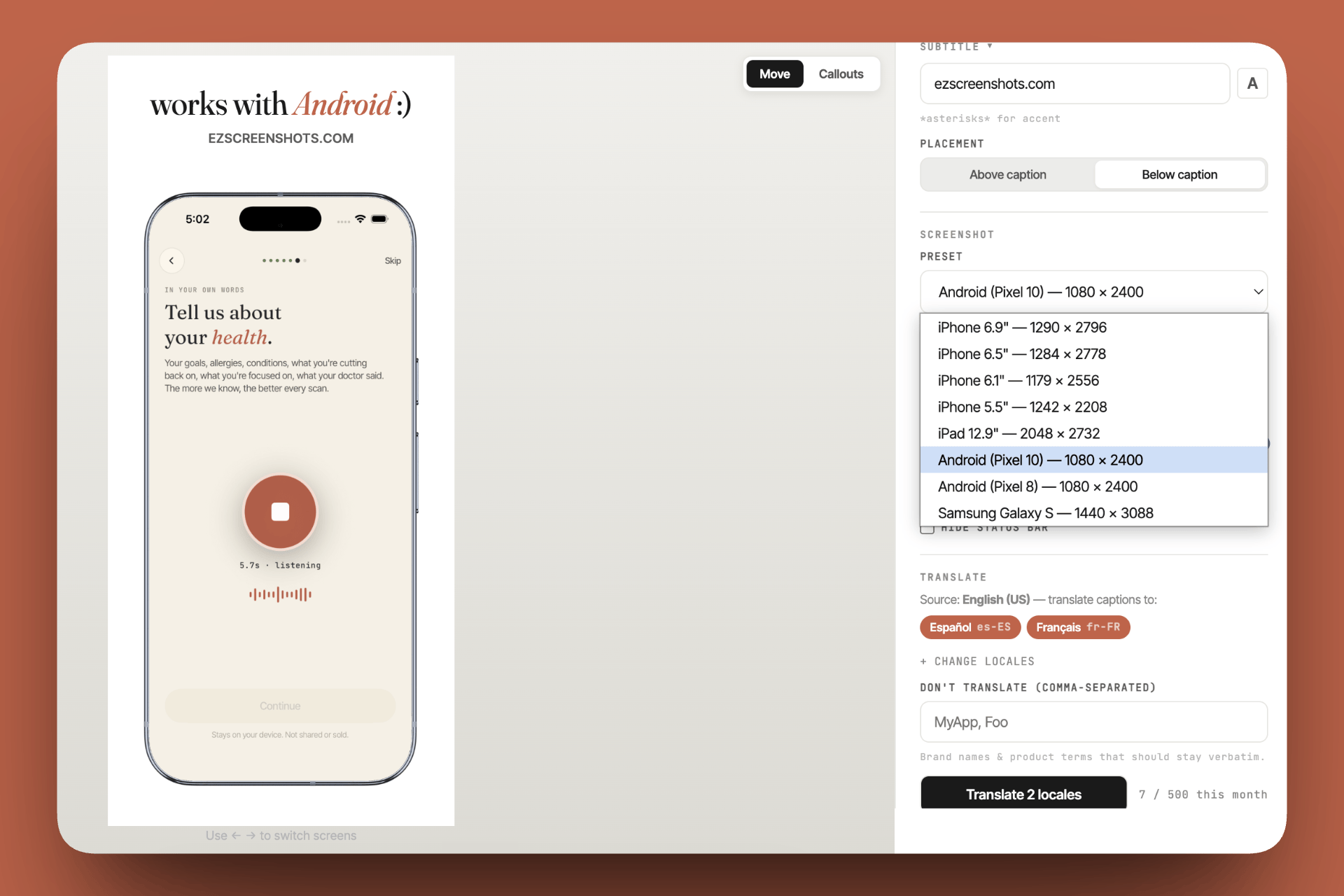
Export Play Store screenshots at the right size in one click
Select the Android Phone preset, drop in your screenshot, add your caption, export. Same tool handles both Play Store and App Store dimensions — no resizing in Figma. Free, no account needed.
Try ezscreenshots →Summary
- Minimum 2, maximum 8 screenshots; recommended size 1080×1920px; JPEG or 24-bit PNG; max 8MB each
- Feature graphic is 1024×500px exactly — required to enable promo video; keep key content in the center 80%
- Rejection triggers: misleading claims, policy-violating content, impersonation, IP violations — Google enforces post-publication too, so a compliant-looking listing can still be taken down
- Screenshots don't appear in Play Store search results — icon + name do all the search work; screenshots convert users who tap through
- Horizontal strip layout means first screenshot is most important; design in descending priority order
- Caption placement flexibility — unlike App Store, you don't need captions in the strict top 40%; readability in the horizontal strip is the main constraint
- Same design, different export — use ezscreenshots Android Phone preset for Play Store, iPhone preset for App Store; one session, two export passes