What ASO actually is (and what it isn't)
App Store Optimization is the practice of improving your app's visibility in App Store and Google Play search results and improving the conversion rate of users who find it. Those are two separate goals — discovery and conversion — and most ASO guides conflate them.
Discovery is about keywords: which queries surface your app, and how high does it rank for those queries? Conversion is about listing quality: of the people who see your app, what percentage tap through and install? You can have excellent keyword coverage and terrible conversion. You can have a perfect listing that nobody finds. ASO requires both.
What ASO isn't: a substitute for a good product. An optimized listing gets users in the door. If they open the app, don't find value, and leave — your ratings drop, your conversion rate drops, and Apple's algorithm deprioritizes your listing. ASO and product quality are symbiotic.
Part 1: App keywords — how they work on iOS
Apple indexes keywords from three sources for search ranking: your app name, your subtitle, and your keyword field. Nothing else. The long description is not indexed. Tags are not indexed. Reviews are not indexed. Just those three fields.
App name (30 characters)
The most heavily weighted field. Keywords in your app name carry significantly more ranking weight than keywords in your subtitle or keyword field. Most indie developers waste this by using only their brand name ("MyBudgetApp") when they could include their primary keyword ("MyBudget — Expense Tracker"). The format "Brand — Primary Keyword" is common among high-ranking apps for good reason.
Constraint: your app name must reflect what the app actually does. Apple will reject metadata that uses keyword-stuffed names unrelated to the app's functionality.
Subtitle (30 characters)
The subtitle is visible below your app name in search results and is indexed by the algorithm. Use it for your second most important keyword cluster, not for a marketing tagline. "The best habit tracker ever!" wastes 30 indexed characters. "Daily habits, streaks & goals" contains three indexable keyword concepts and describes the app.
Subtitles are also the first text users read after the app name — so the keyword placement and user-facing copy need to work together. "Daily habits, streaks & goals" accomplishes both.
Keyword field (100 characters, iOS only)
The keyword field is invisible to users but indexed by Apple's algorithm. Rules that matter:
- Don't repeat keywords already in your name or subtitle — they're already indexed, repetition wastes characters
- Use commas as separators, not spaces — "habit,tracker,daily" gives you three indexed terms; "habit tracker daily" gives you one three-word phrase
- Don't use spaces after commas — "habit, tracker" wastes a character on every separator
- Include competitor-adjacent terms carefully — you can rank for category terms your competitors rank for; using a competitor's brand name directly violates Apple's guidelines
- Use all 100 characters — every unused character is an unused ranking opportunity
How to find the right app keywords
The goal is keywords with meaningful search volume that you can actually rank for. Two practical approaches without paid tools:
App Store autocomplete: type your core category term into the App Store search bar and note every autocomplete suggestion. These are real searches. Type "habit" and you'll see "habit tracker", "habit tracker daily routine", "habit building app" — each is a real keyword with real search volume.
Competitor name field inspection: look at the names and subtitles of your top 10 competitors. The keywords they've chosen to include are informed by their own keyword research. Don't copy — understand the category's keyword landscape and find gaps.
For indie developers who want data, AppFollow and App Radar have free tiers with keyword volume estimates. Paid tools like AppTweak ($100+/month) have more accurate data but aren't necessary for most indie apps.
Part 2: Google Play keywords (different rules)
Google Play has no separate keyword field. Keywords are indexed from your app title (50 characters), short description (80 characters), and long description (4,000 characters). The long description matters — Google's algorithm reads it like a webpage, so natural keyword usage throughout the description contributes to ranking.
The Play Store also has a feature graphic (1024×500px banner displayed above screenshots on the app page) with no iOS equivalent. It's indexed for visual search in some contexts but primarily affects conversion on the app page itself rather than search ranking.
If you're targeting both stores, your keyword strategy needs to be separately optimized for each. The same keywords apply, but the placement rules are completely different.
Part 3: Screenshots — the conversion lever most devs underuse
Keyword optimization determines whether your app appears in search results. Screenshots determine whether the people who see it install. In most A/B tests across the App Store, changing screenshots produces a larger conversion lift than changing any other listing element.
The reason: screenshots are the dominant visual in search results. Your icon and first screenshot are the first things a user evaluates — often before reading a single word. The decision to tap through (or not) happens in about two seconds based primarily on what those images communicate.
The first screenshot
The first screenshot is cropped in search results to roughly the top 40% of the image. The caption — if you have one — needs to be in that top 40% to be visible before a user taps through. Most developers miss this: they place their caption in the middle or bottom of the screenshot, which is invisible in search.
Caption language matters as much as placement. "Track your habits" describes a feature. "Build a habit in 21 days" describes an outcome. The second version answers the question a user is actually asking — "what does this do for me?" — and converts at meaningfully higher rates.
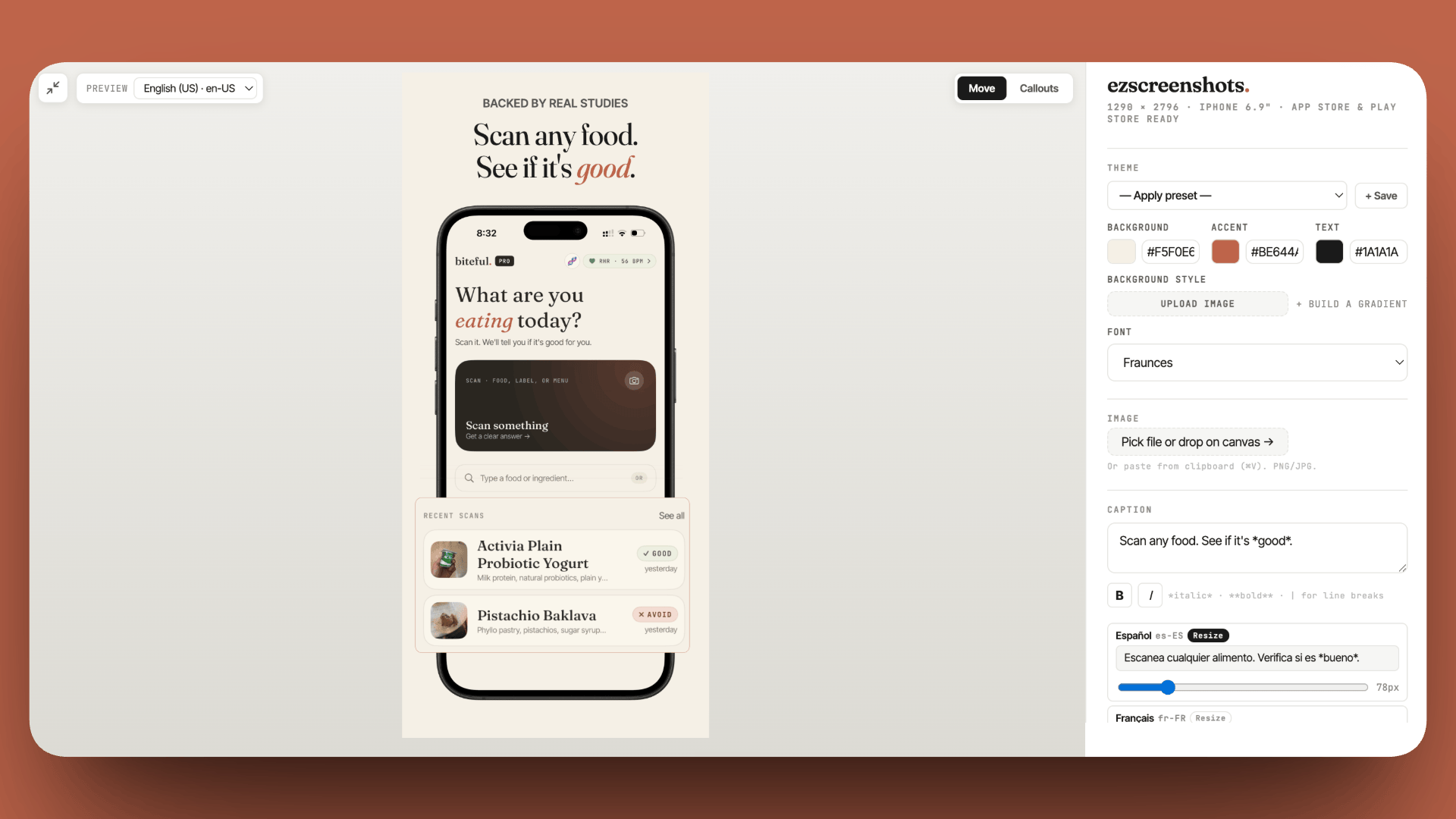
ezscreenshots is built around this principle: drop in your Simulator screenshot, write the outcome-focused caption, position it in the top third, and export at the exact dimensions Apple requires for each device size. The caption placement and sizing are handled automatically.
Screenshots 2–5
Screenshots 2–5 are visible when a user taps through to your app page. They follow the same principle as the first: each should answer one specific question a user has at that point in their evaluation. A useful sequence:
- Screenshot 1: What does this do for me? (outcome)
- Screenshot 2: How does it work? (core feature in action)
- Screenshot 3: What else can it do? (secondary value)
- Screenshot 4: Does it work for my situation? (specific use case)
- Screenshot 5: Why should I trust it? (social proof, ratings callout, or a "used by X people" claim)
This sequence addresses the mental checklist a potential user runs through. Screenshots that don't advance the evaluation — showing the settings screen, showing the onboarding flow, showing UI with no caption — waste slots.
Part 4: App Preview video
Apple allows a 15–30 second App Preview video that autoplays in search results. Apps with a well-made App Preview consistently convert at higher rates than apps with screenshots alone — the user sees the product working in real time, which answers "does this actually do what it claims?" more convincingly than any static screenshot.
The bar for "well-made" is lower than most developers expect. A raw 20-second Simulator screen recording showing the core user flow — with no narration, no voiceover, no animations — performs well. The authenticity of an unedited recording triggers belief; overproduced videos with stock music trigger skepticism. Record the flow that produces the most value for a new user in 20 seconds. Export at the required resolution (1080×1920 for portrait iPhone). Submit.
For the full breakdown of what App Preview does for conversion, see our post on App Store app preview videos.
Part 5: Ratings and reviews
Ratings affect ASO in two ways: directly (higher-rated apps rank better for the same keywords) and indirectly (a 4.8-star rating with 200 reviews converts browsers into installs; a 3.2-star rating with 5 reviews does the opposite).
Apple allows three rating prompts per app per year via SKStoreReviewRequest. The timing of those prompts matters enormously — prompting immediately after a user accomplishes something meaningful (finished their first workout, hit a streak milestone, completed a task) produces 3–5x higher prompt-acceptance rates than prompting after session length alone.
For the full breakdown of rating prompt strategy without dark patterns, see our post on how to get users to rate your app.
Part 6: The ASO audit — diagnosing what to fix first
If your listing isn't producing downloads, the diagnosis starts with App Store Connect data:
| Metric to check | Where to find it | What a problem looks like | Fix |
|---|---|---|---|
| Impressions | App Store Connect → Analytics → Acquisition | Very low — under 100/week for a newly submitted app | Keyword issue — add more relevant terms to name/subtitle/keyword field |
| Product page conversion rate | App Store Connect → Analytics → Conversion | Below 20% for warm traffic (branded searches) | Listing issue — rewrite first screenshot caption, improve subtitle |
| Impressions but low taps | Impressions vs Product Page Views ratio | Users see the listing in search but don't tap through | First screenshot or icon is not compelling at thumbnail size |
| Taps but low installs | Product Page Views vs Downloads ratio | Users visit the page but don't install | Screenshots 2–5, description, or ratings need work |
Work through this in order: impressions first, then tap-through rate, then conversion. Fixing conversion before you have impressions is premature; fixing keywords when your conversion rate is 5% is wasted work.
Part 7: Product Page Optimization (A/B testing)
Apple's Product Page Optimization lets you A/B test up to three screenshot variants against your default listing, with Apple routing a percentage of traffic to each variant. It's the only way to get statistically validated data on which screenshots convert better.
The practical barrier has always been creating the variants — redesigning a screenshot set in a design tool takes hours. With ezscreenshots, changing a caption and re-exporting takes under five minutes. You can create a PPO-ready variant, upload it to App Store Connect, and have a running test before your morning coffee. For the mechanics of PPO and how it differs from Custom Product Pages, see our posts on App Store screenshot A/B testing and Apple Custom Product Pages.
Fix your first screenshot caption before anything else
It's visible in search results before users tap through — and it's the easiest ASO lever to improve. Change "Habit Tracker" to "Build a habit in 21 days." Drop in your Simulator screenshot, add the caption in the top third, export at the right dimensions. Free, no account needed.
Try ezscreenshots →Summary
- ASO has two goals: discovery (keywords → search visibility) and conversion (listing quality → installs) — diagnose which is your problem before fixing
- iOS keyword fields: name (highest weight), subtitle (indexed + user-facing), keyword field (invisible, 100 chars, commas not spaces, no repeats)
- Google Play: title, short description, and long description are all indexed — no separate keyword field
- Keyword strategy: target low-competition keywords where top results have under 500 ratings; use App Store autocomplete to find real search terms
- First screenshot: caption in the top 40% (visible in search crop), outcome language, readable at thumbnail size — the single highest-leverage conversion element
- Screenshots 2–5: each answers one user question in sequence — what it does, how it works, what else it does, why to trust it
- App Preview video: raw 20-second Simulator recording of the core flow consistently outperforms no video
- Ratings: prompt after a meaningful user accomplishment; three prompts per year maximum
- Audit sequence: impressions → tap-through rate → conversion rate — fix in order, not in parallel
- PPO A/B testing: free via App Store Connect; create variants in ezscreenshots in minutes