The problem in one number: 50
Five screenshots × ten languages = fifty files. That's the math for a minimal international launch, before you add iPad sizes or a second device class. Done naively — design each screenshot, translate manually, check layout, export individually — it takes most developers a full day or more. Done with the right workflow, it takes under an hour.
The gap is almost entirely about how you structure the work, not how fast you work. Here are the specific shortcuts that make the difference.
Trick 1: Lock English last, not first
The most common mistake in the localization workflow: finalizing English captions, then translating them, then discovering the translated versions are two words too long and the layout breaks. Now you're either re-translating or redesigning.
The fix: write your English captions with localization in mind before locking them. Specifically:
- Keep captions short. English tends to be among the more compact languages. German, Finnish, and Dutch expand noticeably — a 5-word English caption can become 8 words in German. If your English is already at the edge of your text box, most translations will overflow.
- Avoid idioms. "Nail your morning routine" translates awkwardly in many languages. "Build a morning routine that sticks" is more universal and translates cleanly.
- Avoid line breaks forced by specific word lengths. If your English layout depends on "Track" falling on line one and "expenses" on line two, translations that rearrange those words will break the visual rhythm.
Write shorter, simpler English, and translations work the first time.
Trick 2: Translate all screens at once, not one at a time
The slow workflow: open screenshot 1 in English, translate caption to German, check layout, export. Then screenshot 2, same steps. Five screenshots × ten languages × two steps each = 100 operations.
The fast workflow: design all five English screenshots first. Then add all your target languages at once and batch-translate — all five captions for all ten languages in one step. Preview, fix anything that overflows, export once per language.
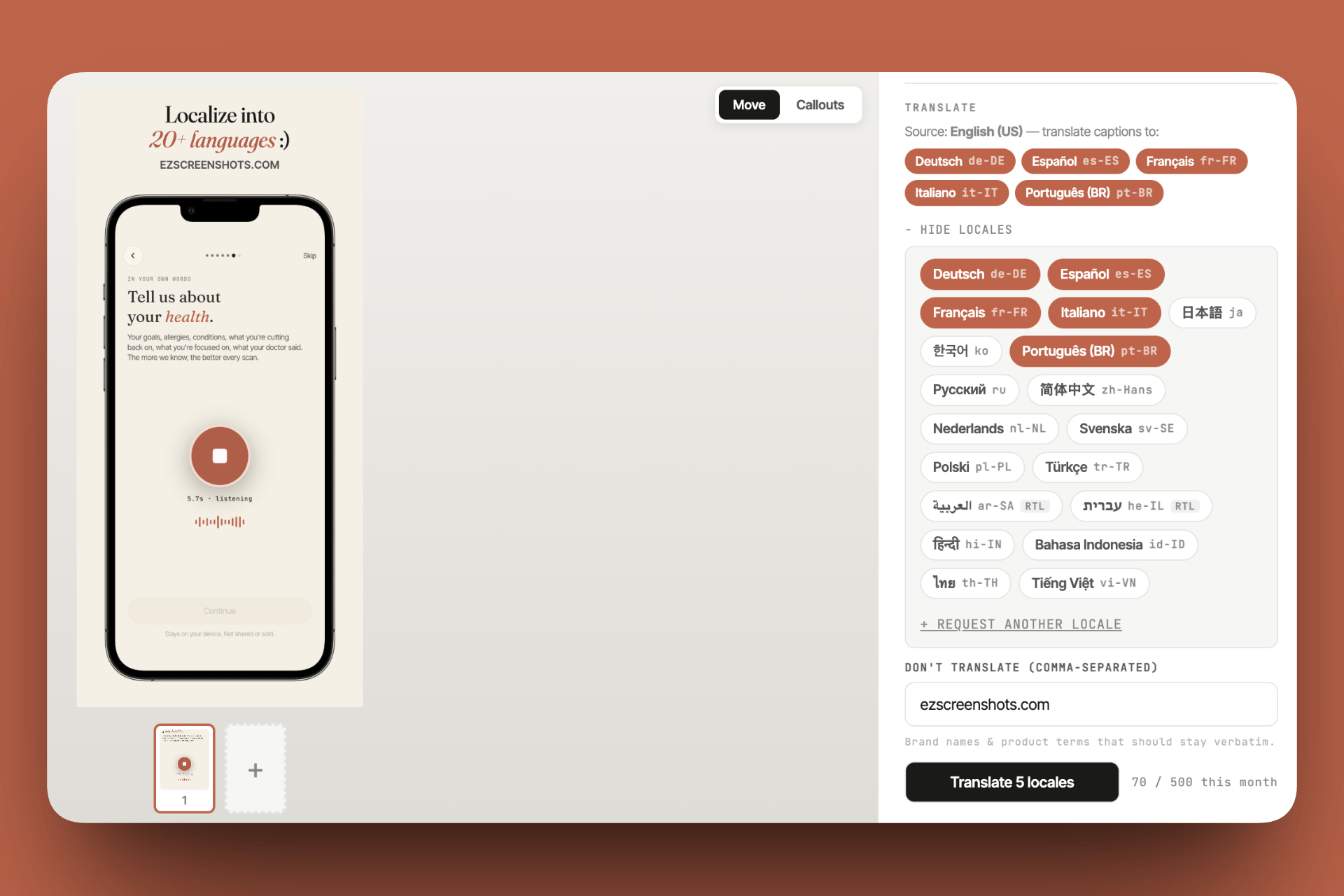
ezscreenshots is built for this: add your locales in the panel, hit translate, and all captions across all screens get translated simultaneously. You go from 100 operations to roughly 12 (add locales → translate → preview each language → fix two or three overflow cases → export).
Trick 3: Preview before export (the step most people skip)
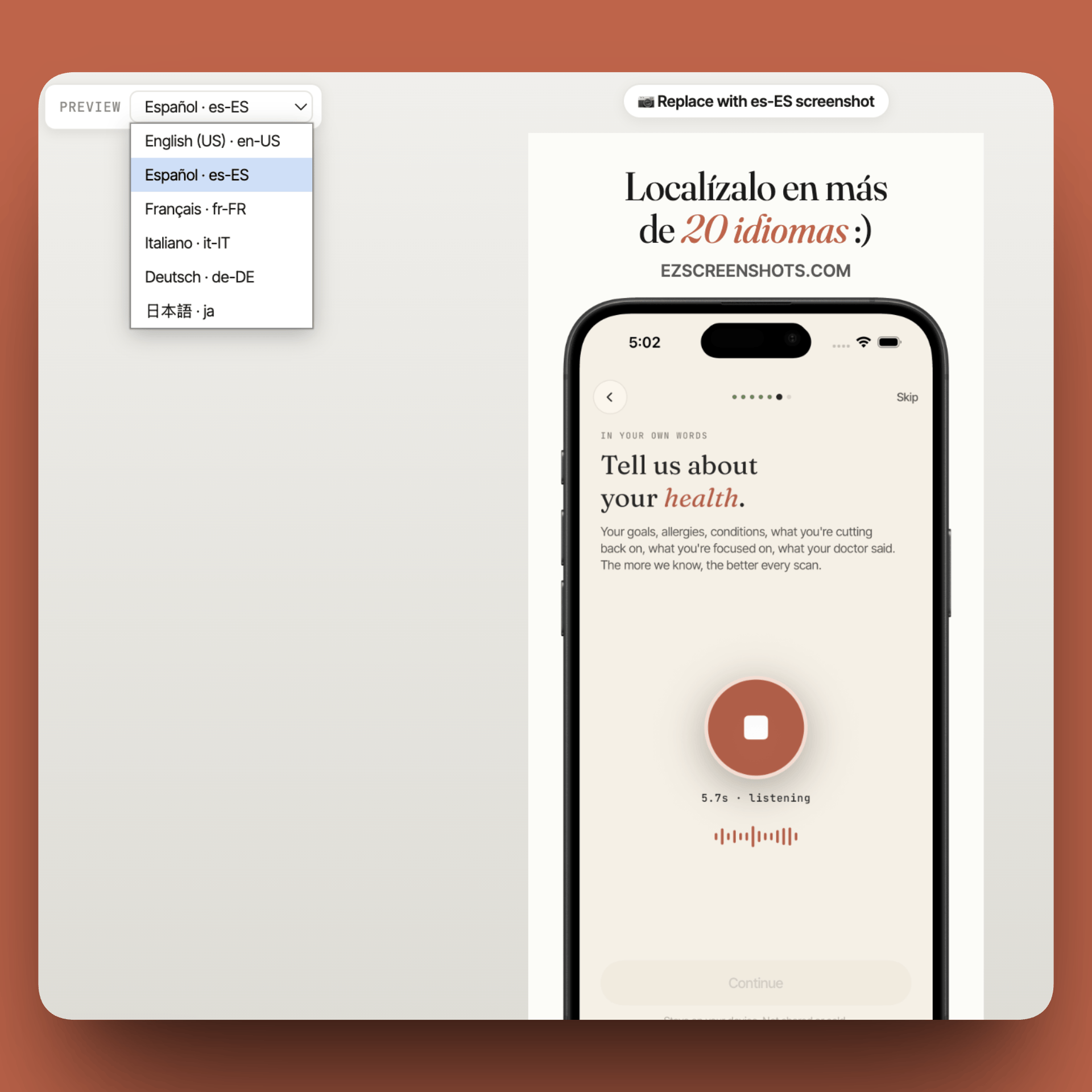
Exporting all 50 files and then discovering three languages have overflow issues is expensive — you need to fix and re-export. The fast workflow catches this before the export step.
In ezscreenshots, the locale preview switcher shows you exactly what each language looks like in the canvas. Spend two minutes clicking through each language: does the caption fit? Does the line break fall in an awkward place? Is RTL text (Arabic, Hebrew) rendering with correct directionality?
Fixing overflow at this stage is just editing the translated caption in the panel. Fixing it after export means re-exporting. Invest the two minutes.
Trick 4: Use a translation dictionary for app-specific terms
AI translation is good at general language but inconsistent with brand-specific or app-specific terms. Your app's name, feature names, and any trademarked terms shouldn't be translated — they should stay in English (or in whatever language your brand uses).
When you prompt an AI for translation, include a "do not translate" list explicitly:
"Translate the following App Store screenshot captions to German. Do not translate: 'Notion', 'App Store', 'Pro', or any product names. Keep the translation natural and casual, not formal."
This prevents the AI from translating "Export to Pro" into "Exportieren nach Pro" when it should be "Als Pro exportieren" — or worse, rendering your app name in German.
Trick 5: Separate metadata localization from screenshot localization
Two different localization tasks often get conflated and tackled together, which makes both feel bigger than they are:
- Metadata localization: app name, subtitle, description, keywords. Text-only, submitted through App Store Connect or Fastlane deliver. Fast to change, easy to iterate.
- Screenshot localization: the visual assets with translated captions. Requires design tooling, has more moving parts, takes longer.
Do them in separate sessions. Finalize and submit metadata first — it can go live even before you have localized screenshots (App Store Connect allows English screenshots for all locales as a fallback). Then tackle screenshot localization as a follow-up update.
This means your international metadata is live sooner, you're not blocked on either task by the other, and when you update one later you know exactly what you're touching.
Trick 6: Reuse your theme across all device sizes
If your app supports both iPhone and iPad, you need two sets of screenshots per locale — but you shouldn't need to redesign anything. The marketing layer (background color, font, caption style) is device-agnostic. Only the canvas dimensions and the underlying app screenshot change.
The fast workflow: design your full localized set for iPhone 6.9". Switch to the iPad 13" preset — your theme carries over. Swap in the iPad raw screenshot (or use the same iPhone screenshot if the marketing content is layout-independent). Export. That's your iPad set, localized, in minutes rather than hours.
This is covered in depth in iPad screenshots for iPhone apps — the short version is that switching canvas presets in ezscreenshots preserves all theme settings, so you're never redesigning from scratch.
Trick 7: When to prioritize AI vs. human translation
Not all languages need the same level of care. A rough framework:
| Scenario | Approach |
|---|---|
| Short marketing captions (5–8 words) | AI translation is fine for all languages — the simpler the sentence, the more accurate AI is |
| Your top 1–2 non-English markets (10%+ of installs) | AI first pass, then native speaker review — 15 minutes per language is worth it |
| Japanese or Korean | AI draft, then review — tone and formality register matter more here than in European languages |
| Arabic or Hebrew | AI draft, then verify RTL rendering in preview — directionality issues are invisible until you look |
| Long-tail markets (<2% of installs) | AI only — the ROI on native review doesn't clear for low-volume locales |
Putting it together: the fast localization workflow
End to end, for a 5-screenshot set going into 10 languages:
- Write English captions short — aim for 4–6 words, no idioms, no forced line breaks (10 min)
- Design all 5 English screenshots — background, font, device frame, captions (20–30 min)
- Add all 10 target locales at once in the localization panel (2 min)
- Batch translate all captions across all screens (1 min)
- Preview each locale — click through all 10, note any overflow (5 min)
- Fix overflow cases — usually 2–3 languages need a caption tweak (5 min)
- Export localized zip — organized by locale (2 min)
- Repeat for iPad preset if needed — swap canvas size, re-export (5 min)
Total: under an hour for a full localized set. The key is doing steps 3–7 as one batch rather than repeating them per language.
Localize in one batch, not one language at a time
ezscreenshots translates all captions across all screens simultaneously — 20+ languages, per-locale preview, one zip export. Free, browser-based, no account needed.
Try it free →Summary
- Lock English captions short — German and Finnish expand by 30–50%, so headroom in English means translations fit first time
- Batch translate — all screens × all languages in one step, not language by language
- Preview before export — two minutes of checking saves a full re-export cycle
- Use a "do not translate" list for app names, feature names, and trademarks
- Keep metadata and screenshot localization separate — two smaller tasks are faster than one big one
- Reuse your theme across device sizes — switching canvas presets doesn't reset your design
- AI for everything, native review only for top markets — the ROI on review scales with install volume