Is it worth porting at all?
The honest first question. iOS and Android aren't equal revenue opportunities for every app category. iOS users in Western markets spend significantly more per user on average — but if your app has traction on Android in markets where Android dominates (South Asia, Southeast Asia, much of Africa and Latin America), the iOS opportunity may be smaller than you'd expect.
The signal worth checking before you start: do your Android analytics show a meaningful iOS user-agent in your web traffic or landing page visits? If people on iOS are already trying to find your app, that's demand signal. If your Play Store reviews include "please make an iPhone version," that's demand signal. If neither is true, the porting decision is a bet on a new market, not a response to existing demand.
That said, the porting cost has dropped substantially. If you're using Jetpack Compose, Kotlin Multiplatform is a practical path to sharing business logic and even UI code with iOS. If you're open to a rewrite, Flutter produces genuinely good iOS apps from a single codebase. A solo developer can realistically ship an iOS port in 4–8 weeks from a working Android app, depending on complexity.
What transfers directly
More transfers than most Android developers expect:
- Business logic — data models, API calls, state management, persistence logic. If it's pure Kotlin with no Android framework dependencies, it can often run unchanged via Kotlin Multiplatform. Even if you're rewriting in Swift, the logic maps 1:1.
- Backend integration — your server, your API, your database. iOS apps call the same endpoints. Nothing changes server-side.
- Product decisions — your feature set, your pricing model, your onboarding flow. These carry over. The UI needs to be rebuilt; the decisions behind it don't.
- Assets — icons, images, fonts, copy. SVG icons render fine on both platforms. App icon sizes differ (Apple requires specific sizes via an asset catalog) but the source artwork is the same.
What doesn't transfer and needs rebuilding
UI layer: Material → HIG
Android's Material Design and iOS's Human Interface Guidelines (HIG) produce visually similar apps that feel very different to use. iOS users have specific expectations: navigation lives in a tab bar at the bottom or a navigation stack with a back button in the top-left; settings live in the iOS Settings app or a dedicated in-app screen; modals behave differently; pull-to-refresh has a specific feel; system fonts (SF Pro) are expected in most contexts.
The most common iOS port mistake: directly translating Material components to iOS without adapting to HIG conventions. The result looks like an Android app running on an iPhone — it works, but iOS users notice and leave worse reviews. Spending a week studying Apple's Human Interface Guidelines before writing a line of Swift or Flutter code pays back in review quality.
One recommendation from the r/androiddev community: "If you already use Jetpack Compose, look at Compose Multiplatform — you can share the same UI code and business logic across iOS, Android, and JVM desktop." This is increasingly viable for straightforward UIs, though complex gesture interactions and platform-specific components still need platform-specific handling.
Billing: Google Play Billing → StoreKit
Google Play Billing and Apple's StoreKit are entirely different APIs with different concepts, different sandbox testing flows, and different product configuration (done in Google Play Console vs App Store Connect). If you're using RevenueCat, the SDK abstracts most of this — you configure products in both consoles and RevenueCat presents a unified API. Without RevenueCat, you're implementing both billing layers independently. The Flutter subscriptions guide covers this decision in detail.
Permissions model
iOS permissions are more explicit than Android's. Every sensitive permission (location, camera, microphone, contacts, notifications) requires a purpose string in Info.plist explaining why the app needs it. Apple reviewers read these strings and reject apps where the stated purpose doesn't match the app's actual use. Android developers used to runtime permissions since API 23 will find this familiar in concept but different in implementation — there's no manifest permission list to copy; each permission has its own API call and purpose string.
Background execution
iOS is significantly more restrictive about background execution than Android. Background fetch, background processing, and push-notification-triggered updates all require specific entitlements and follow strict battery-optimisation rules. Apps that rely on long-running background services on Android need to rethink that architecture for iOS — the equivalent functionality usually requires push notifications via APNs to wake the app.
Distribution: Google Play Console → App Store Connect
The submission process is meaningfully different. Google Play review is largely automated and typically takes hours. Apple's review is human-reviewed and takes 24–48 hours on average, with a real chance of rejection requiring a resubmission cycle. Common first-submission rejections for Android developers porting to iOS: missing purpose strings, incomplete privacy policy, screenshots that don't match the app's current functionality, and metadata that describes features the app doesn't implement.
Rejections aren't failures — they're part of the process. But building in time for 1–2 rejection cycles on your first iOS submission is realistic.
The screenshot requirement gap
This is the part most Android developers underestimate. Apple requires screenshots for every device size you support — and the required sizes are different from Google Play's. At minimum, you'll need screenshots for iPhone 6.9" (the iPhone 16 Pro Max size, 1320×2868px) and, if your app runs on iPad, iPad Pro 13" (2064×2752px). Each size needs its own correctly-dimensioned PNG.
Google Play requires a single set of phone screenshots (any size within a range) plus optional tablet sizes. Apple's requirements are more rigid: wrong dimensions will be rejected during submission, and the screenshot UI in App Store Connect won't accept images that don't match exactly.
| Platform | Required sizes | Format |
|---|---|---|
| Google Play | 2–8 screenshots, any size between 320–3840px on either side, 16:9 or 9:16 | JPG or PNG, max 8MB |
| App Store (iPhone) | 6.9" required (1320×2868 or 1290×2796); 6.5" and 5.5" optional but suppressed by 6.9" | PNG, exact dimensions |
| App Store (iPad) | 13" required if iPad-supported (2064×2752 or 2048×2732) | PNG, exact dimensions |
The fastest way to produce iOS screenshots from your Android screenshot assets: take your existing Play Store screenshots, drop them into ezscreenshots, select the iOS device preset, and export. The editor handles the dimension change, adds a device frame if you want one, and exports at the exact pixel dimensions Apple requires. For a port where you're reusing the same core visuals, this turns a multi-hour Figma task into a 15-minute job.
The fastest porting paths in 2026
Kotlin Multiplatform (if you're already on Jetpack Compose)
Kotlin Multiplatform lets you share business logic — and optionally UI via Compose Multiplatform — across Android and iOS from a single Kotlin codebase. If your Android app is built with modern Kotlin and Jetpack Compose, this is the lowest-friction path. You keep your existing Android code, add iOS targets, and write platform-specific code only where necessary (permissions, billing, platform-specific UI components).
The caveat: Compose Multiplatform on iOS is still maturing. Complex gesture interactions and anything that needs to look exactly like native iOS UI may still need SwiftUI or UIKit wrappers.
Flutter (if you're open to a rewrite)
Flutter produces native-compiled iOS apps from Dart code. For Android developers who don't want to learn Swift, Flutter is the practical alternative — the Dart learning curve is gentle for anyone coming from Kotlin or Java, and the resulting iOS app passes App Store review without issues. RevenueCat, Firebase, and most major SDKs have official Flutter packages.
The tradeoff: Flutter apps don't use native platform UI components. They draw their own widgets. For most utility and productivity apps this is invisible to users; for apps where feeling "native" matters (system-adjacent tools, apps that need to blend with the OS), it's noticeable.
Native Swift (if you're targeting quality over speed)
A native Swift/SwiftUI port takes longer but produces the best iOS result. For apps where the iOS experience is a first-class product — not just an Android port — SwiftUI is the right investment. The learning curve from Kotlin/Jetpack Compose to Swift/SwiftUI is real but manageable; the two paradigms are more similar than different.
Whichever path you take, one requirement doesn't change: building and submitting the final iOS binary needs Xcode, which only runs on macOS. If you've been developing on Windows or Linux, see our breakdown of every real way to get an iOS build done without owning a full-price Mac.
Before you submit: the iOS launch checklist additions
Things Android developers commonly miss on their first iOS submission:
- Purpose strings for every permission in
Info.plist— reviewers read these - Privacy nutrition label in App Store Connect — required, includes RevenueCat and any analytics SDK data types
- Screenshots at exact Apple-specified dimensions — wrong sizes are rejected at upload
- App icon in all required sizes via asset catalog — no alpha channel in the app icon PNG
- A working Restore Purchases flow for any IAP or subscription
- Tested on a real device, not just Simulator — some crashes only reproduce on device
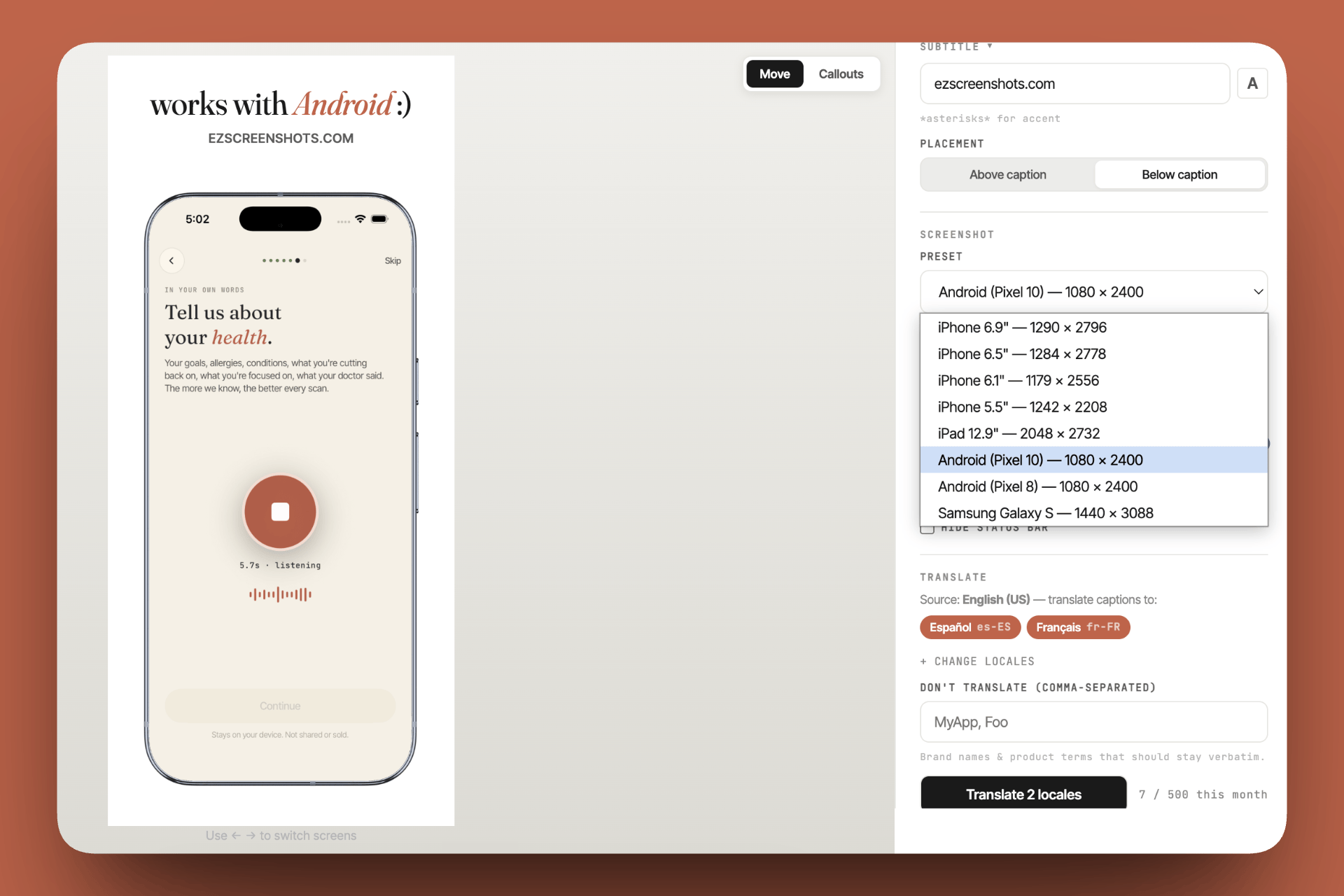
Get your iOS screenshots ready from your existing Android assets
Your Android screenshots need to be re-exported at iOS dimensions before App Store submission. Drop your existing screenshots into ezscreenshots, switch to the iOS preset, and export at the exact Apple-required dimensions. Free, no account needed.
Try ezscreenshots →Summary
- Check demand first — iOS web traffic, Play Store "iPhone version?" reviews, and App Store search volume for your category are better signals than assumed opportunity
- What transfers: business logic, backend integration, product decisions, source assets — more than you expect
- What needs rebuilding: UI layer (Material → HIG), billing (Google Play → StoreKit), permissions model, background execution architecture, App Store Connect submission flow
- Fastest paths: Kotlin Multiplatform if you're on Jetpack Compose; Flutter if you're open to a rewrite; native Swift for the best iOS result
- Screenshot requirements differ significantly — Apple requires exact pixel dimensions per device size; Google Play is more flexible; plan for this as a distinct task in your launch checklist
- First-submission rejections are normal — build in time for 1–2 cycles; common causes are missing purpose strings, privacy label gaps, and screenshot dimension issues
- RevenueCat abstracts the billing difference — configure products in both consoles, same SDK call on both platforms