Where to find what
App Store Connect's Analytics section (accessible at appstoreconnect.apple.com) is organized into five tabs: Acquisition, Usage, Monetization, Frameworks, and Crashes. For most indie developers, Acquisition and Usage contain almost everything actionable. Monetization is useful once you have meaningful revenue. Frameworks and Crashes are engineering concerns, not marketing ones.
Within Acquisition, the view defaults to a high-level summary. The useful data requires drilling into specific metrics and filtering by impression source — something most developers never do.
The metrics that matter
1. Impressions by source
Where: Acquisition → Impressions → break down by Source Type
What it tells you: How people are finding your app. App Store Connect breaks impressions into sources: App Store Search, App Store Browse (editorial, charts, suggested), App Referrer (other apps), Web Referrer, and App Store Search Ads.
The most important source for most indie apps is App Store Search. If this is generating few impressions, your keyword coverage is too narrow — your app isn't appearing for the queries your target users are typing. The fix is in your app name, subtitle, and keyword field. See the full keyword strategy in our ASO guide.
If App Store Search impressions are healthy but downloads aren't, the problem shifts to conversion — and the metrics below will tell you where the leak is.
2. Product page conversion rate
Where: Acquisition → Conversion → select "Product Page Views to Downloads"
What it tells you: Of the users who viewed your app's product page, what percentage installed.
Benchmarks:
- Branded search traffic (people searching your app name directly): 50–70% conversion is normal. Below 30% suggests your listing doesn't match what users expect from the name.
- Category search traffic (people searching your category keyword): 20–35% is healthy. Below 15% is a clear signal your screenshots or subtitle aren't doing their job.
- Browse/editorial traffic: 10–20% is typical — these users have lower intent than searchers.
Conversion rate is the single most actionable metric in App Store Connect. A conversion rate of 12% on category search traffic means 88 out of every 100 people who found your app decided not to install it. The first screenshot and subtitle are the highest-leverage things to test first. ezscreenshots makes it fast to create a new variant — change the caption, re-export, upload as a Product Page Optimization test.
3. Impressions-to-product-page tap-through rate
Where: Acquisition → compare Impressions vs Product Page Views for the same period
What it tells you: Of users who saw your listing in search results, how many tapped through to your product page.
This metric catches a problem that conversion rate alone misses: users who see your listing in search but scroll past without tapping. If impressions are high but product page views are low, your search result appearance isn't compelling — meaning your icon, app name, or the cropped first screenshot visible in search isn't generating enough interest to earn a tap.
The fix is typically the first screenshot caption (visible in the search result crop) or the icon. For how the search result crop works and how to preview it, see our post on previewing App Store search results.
4. Retention — Day 1 and Day 7
Where: Usage → Retention
What it tells you: What percentage of users who installed your app came back the next day (Day 1) and after a week (Day 7).
Benchmarks by category (from Adjust's mobile KPI benchmarks):
- Games: D1 ~25–30%, D7 ~10–15%
- Productivity/utilities: D1 ~30–40%, D7 ~15–25%
- Health/fitness: D1 ~30–35%, D7 ~15–20%
Low Day 1 retention is almost always an onboarding problem — users don't reach the core value before they leave. Low Day 7 retention with decent Day 1 suggests the value is there but isn't driving habit. Neither of these is fixed by changing your App Store listing — they're product problems. But low retention compounds into a listing problem over time: Apple's algorithm factors engagement into search ranking, and apps with high churn gradually fall in results even with good keyword coverage.
5. Proceeds per paying user
Where: Monetization → Proceeds → divide by paying users count
What it tells you: Average revenue per user who has ever paid. This is a rough LTV proxy without needing a third-party analytics tool.
If this number is declining over time, you're acquiring lower-quality users (either from channels with worse intent, or your paywall is getting earlier/more aggressive and collecting one-time payments from users who don't stay). If it's growing, your monetization is improving — either through better pricing, better paywall placement, or better user quality from organic search.
For more granular LTV and subscription analytics, RevenueCat's dashboard tracks trial starts, trial conversions, churn, and MRR with more precision than App Store Connect — worth adding once you have a subscription.
6. Crashes per active device
Where: Crashes tab → Crashes per Active Device
What it tells you: How often your app crashes relative to the number of active users.
This one belongs on the list not because it's a marketing metric, but because Apple's algorithm weighs crash rate in search ranking. An app crashing on more than 1–2% of sessions consistently loses ranking. More importantly, it tanks your ratings — a crash is the most reliable trigger for a 1-star review. Check this weekly and treat any spike as urgent.
The metrics that look important but usually aren't
Total downloads (in isolation)
Downloads without conversion rate context are nearly meaningless. 500 downloads at 8% conversion means 6,250 people saw your listing and decided not to install. 500 downloads at 35% conversion means 1,429 people saw it and most of them installed. The second app has a much better listing despite the same download count. Always read downloads alongside conversion rate.
Total impressions (in isolation)
High impressions with low downloads means your keywords are working but your listing isn't. Low impressions with high conversion means your listing is excellent but your keyword coverage is too narrow. Track both together — they tell opposite stories when misread individually.
Average rating
Rating matters for conversion (users see it before they install) and algorithm ranking, but the number itself is a lagging indicator. It reflects past user experience, not current. A 3.8-star rating from six months ago when your onboarding was broken may not reflect your current app at all. Focus on actively soliciting reviews after the fixes — the rating will recover over time. For timing and tactics, see our post on getting users to rate your app.
Session duration
Longer session duration isn't inherently better. For a to-do app, long sessions might mean users are struggling to find something — short, efficient sessions are the goal. For a reading app, long sessions are exactly what you want. Always interpret session duration in the context of what "good usage" looks like for your specific app.
The weekly review routine (10 minutes)
Most App Store Connect analytics don't require daily monitoring. A weekly 10-minute review covers everything actionable:
- Impressions by source — is App Store Search growing, flat, or declining? Flat or declining after a metadata update is a signal the keywords changed for the worse.
- Conversion rate — above or below your baseline? A drop without a product update usually means a competitor launched something that's pulling users away, or a seasonal change in search intent.
- Crashes per active device — any spikes? If yes, check crash logs immediately.
- Day 1 retention — check monthly rather than weekly, since the sample needs time to stabilize.
Everything else can be checked monthly or when you're preparing for a specific decision (pricing change, PPO test, keyword update).
Using analytics to decide what to fix first
The diagnostic logic follows a funnel — fix problems in order from top to bottom:
- Low impressions → keyword problem → fix app name, subtitle, keyword field
- Good impressions, low tap-through → search appearance problem → fix first screenshot caption (must be in top 40% crop) and icon
- Good tap-through, low product page conversion → listing quality problem → fix screenshots 1–5, subtitle, description
- Good conversion, low retention → product/onboarding problem → fix first-session experience, not the listing
The most common mistake is fixing at step 3 or 4 when the real problem is at step 1 or 2. Adding more screenshots to a listing that isn't generating impressions doesn't move downloads.
When the data points to step 2 or 3 — a listing quality problem — the fastest lever is the first screenshot caption. Rewriting it as an outcome statement ("Log a habit in 8 seconds" instead of "Habit Tracker"), verifying it sits in the top third of the image, and testing it against your current version via Product Page Optimization is typically the highest-ROI change you can make to an underperforming listing. ezscreenshots handles the export side — change the caption, re-export at the correct dimensions, upload the variant.
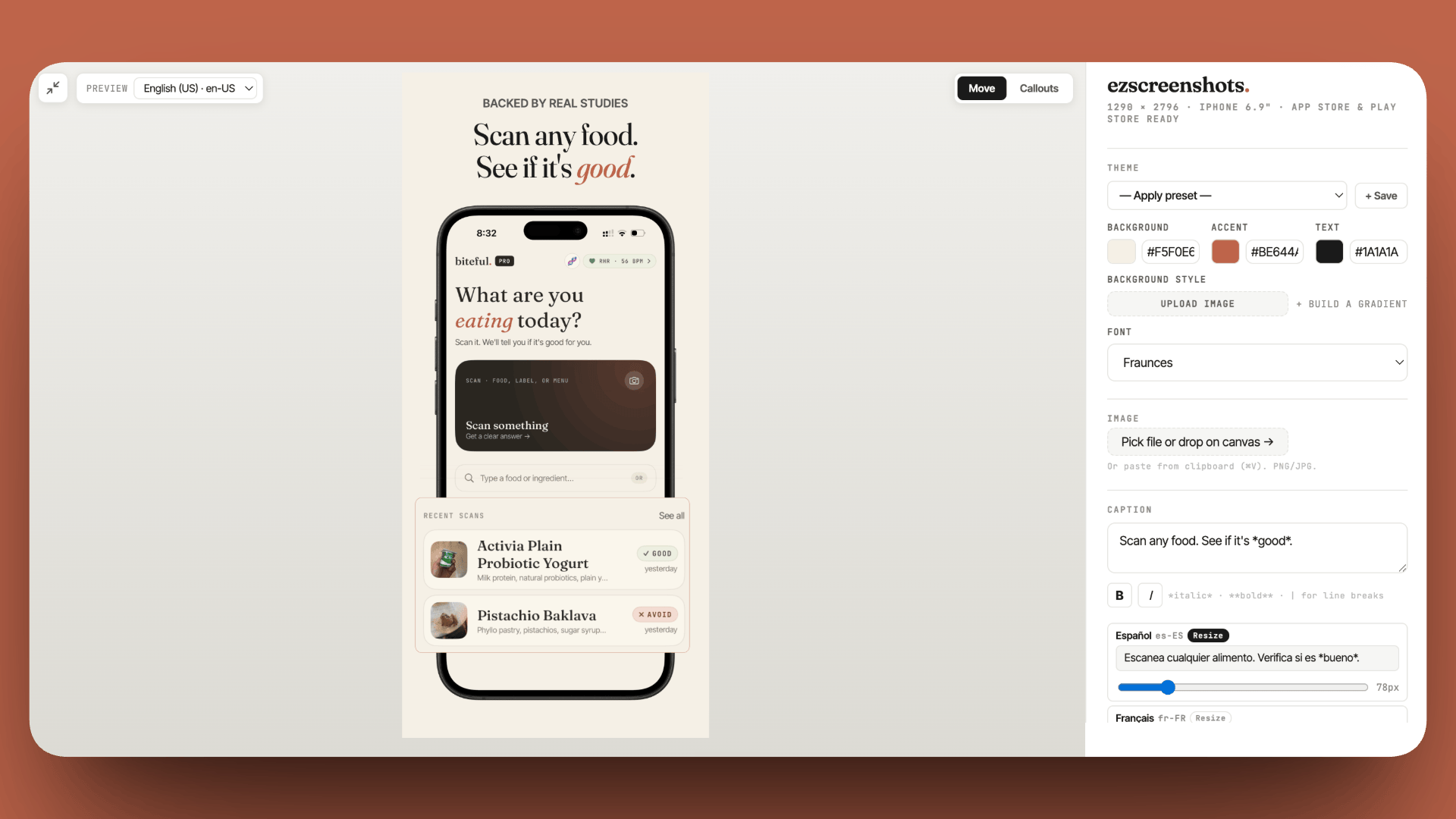
Turn a low conversion rate into a test
App Store Connect shows you the problem. ezscreenshots makes the fix fast — change your first screenshot caption to outcome language, export at the right dimensions, upload as a PPO variant. Free, no account needed.
Try ezscreenshots →Summary
- Track: impressions by source (keyword coverage), product page conversion rate (listing quality), impressions-to-tap-through (search appearance), Day 1/7 retention (onboarding), crashes per device (algorithm + ratings risk)
- Ignore (in isolation): total downloads, total impressions, average rating, session duration — all require context to be meaningful
- Conversion rate benchmarks: branded search 50–70%, category search 20–35%, browse 10–20% — below these thresholds means the listing needs work
- Diagnostic order: impressions → tap-through → product page conversion → retention — fix in order, not in parallel
- Weekly 10-minute review: impressions by source, conversion rate, crash rate; retention monthly
- Low conversion fix: first screenshot caption → outcome language → top-third placement → PPO test via App Store Connect
- For subscription LTV: RevenueCat's dashboard gives more granular data than App Store Connect alone